
Return Outcome Display Order Customization
OVERVIEW
Return Outcome Display Order gives merchants control over how return options appear to customers in the shopper portal. Use this article to learn how to reorder outcomes, toggle product images, and pin the "Return it" option — and to see how those changes appear in real time via the live mobile preview. This feature is available to merchants.
Use the menu on the left to quickly navigate this article.
What it is
Return Outcome Display Order is a setting in the Loop admin that lets merchants customize the order and appearance of return options shown to customers during the returns process. When a shopper initiates a return, they see a "What would you like to do?" screen with buttons for each available outcome. This feature puts merchants in control of which options appear first — and how each one is displayed.
Why it matters
The order in which return options appear can meaningfully influence what customers choose. By surfacing exchange options before refund options, merchants can nudge shoppers toward outcomes that keep revenue in the store.
Prioritize exchanges by placing Exchange, Advanced Exchange, or Product Recommendation options at the top of the list
Build shopper confidence by showing product thumbnail images inside outcome buttons, so customers can see what's available before they click
Stay in control with a live preview that shows exactly what customers will see before you save any changes
Use Cases
This feature is a good fit for merchants who want to reduce refund rates, increase exchange rates, or simply present a more polished, on-brand returns experience. Some common scenarios:
A merchant with a strong exchange program wants to make sure Exchange appears as the first option customers see
A merchant using AI-powered Product Recommendations wants to test whether showing product images increases engagement with that outcome
A merchant wants to visually differentiate refunds by pinning "Return it" to the bottom of the screen with a divider
How it works
The Outcome Display Order settings page lets merchants drag and drop four return outcome types into any order, toggle product image visibility per outcome, and optionally pin "Return it" to the bottom of the screen. Changes are reflected immediately in the live mobile preview on the right side of the page, so merchants can see exactly what their customers will experience before saving.
The four outcome types are:
Exchange / Replacement — Same-product exchanges and replacements, including Smart Exchanges if using
Advanced Exchanges — Exchanges for a different product
Product Recommendations — AI-powered recommendations based on store data and shopper behavior
Return it — Refund to original payment method or store credit
Outcomes that use Loop's AI Intelligence features are marked with a sparkle icon (✦) for easy identification.
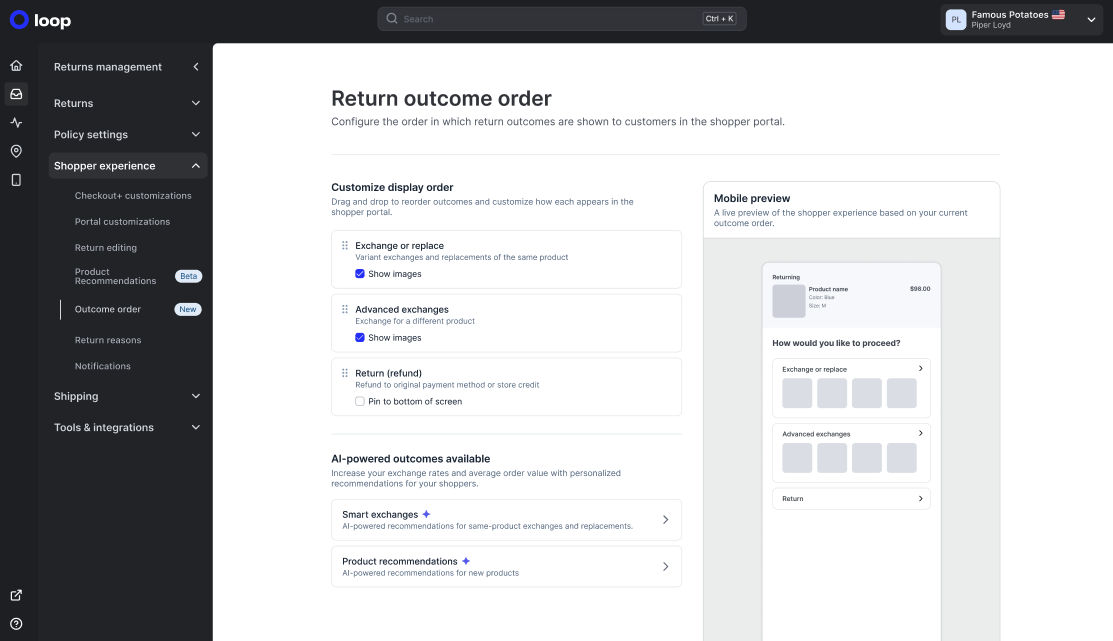
Note: If you haven't configured a custom order, Loop applies a default order automatically: Exchange, Advanced Exchanges, Product Recommendations, and Return it (pinned to the bottom). No action is required to use the defaults.
Setup
Follow the steps below to configure Return Outcome Display Order:
Reorder outcomes
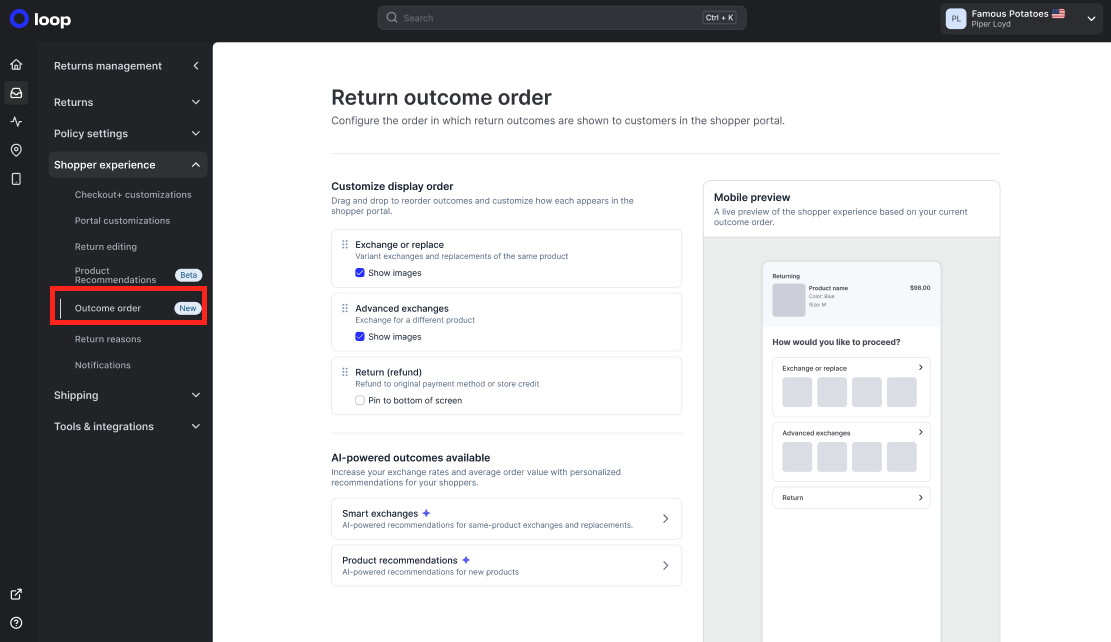
Navigate to Returns Management > Shopper Experience > Outcome order
In the outcome list, click and drag the handle (⠿) on any outcome row to move it up or down into your preferred position.
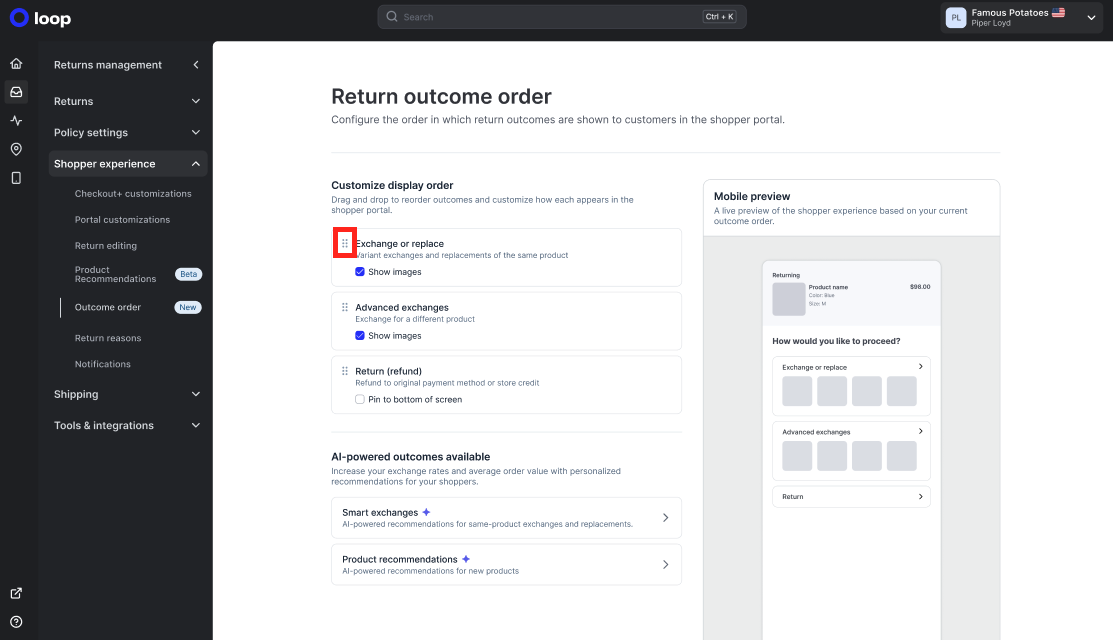
Repeat until the outcomes appear in the order you want.
Toggle product images
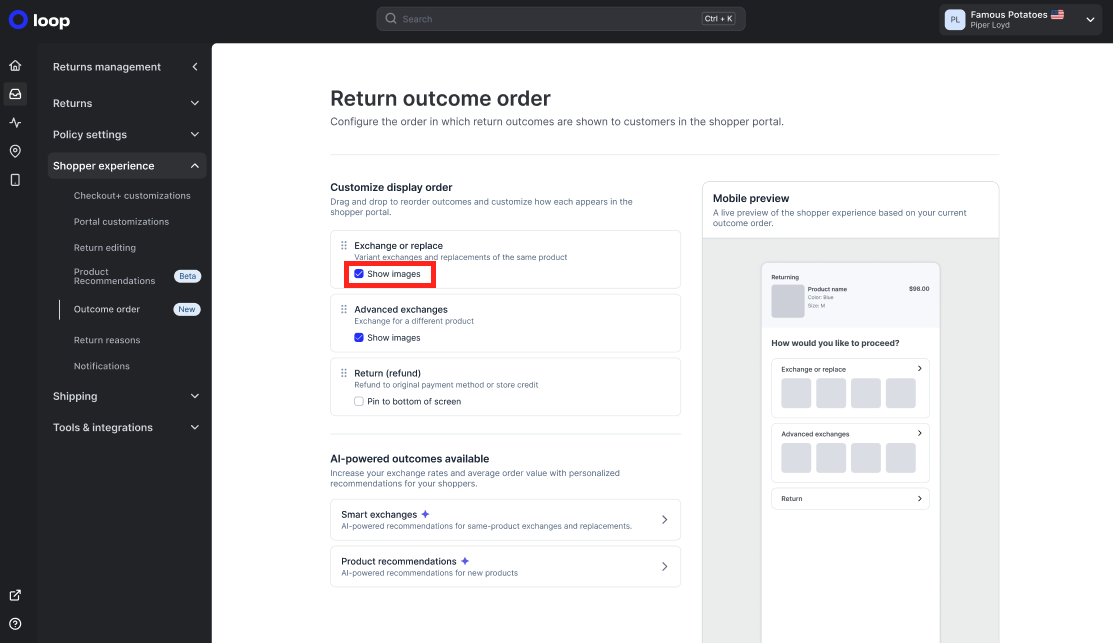
For Exchange, Advanced Exchanges, or Product Recommendations, check or uncheck the Show images toggle on that row.
Pin "Return it" to the bottom
If Return it is in the last position, you can enable the Pin to bottom option to separate it from the exchange options with a visual divider.
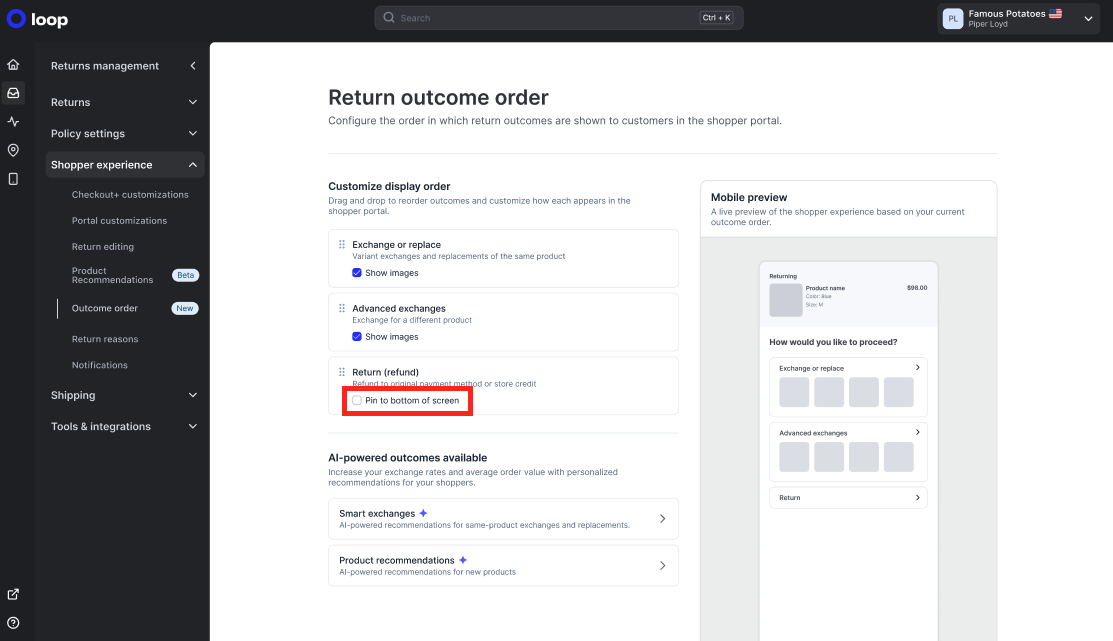
Note: The "Pin to bottom" option is only available when "Return it" is in the last position in the list. If you move it higher in the order, this option will not be available.
Save your changes
Click Save to apply your changes. Updates take effect immediately in the customer portal.
FAQ
Will my customers see these changes right away? Yes. Changes take effect immediately in the shopper portal after you click Save.
What happens if I don't configure this setting? If you haven't set a custom order, Loop uses the default order: Exchange first, then Advanced Exchanges, then Product Recommendations, then Return it (pinned to the bottom). No action is needed to use the defaults.
Can I show product images for "Return it"? No. The "Show images" toggle is only available for Exchange, Advanced Exchanges, and Product Recommendations. "Return it" does not support product thumbnail images.
What is the sparkle icon (✦) I see next to some outcomes? The sparkle icon indicates that the outcome uses Loop's AI Intelligence features. It's there to help you identify which outcomes are powered by AI at a glance.
Please reach out to support@loopreturns.com with any additional questions.