
Shopper Insights
OVERVIEW
Shopper Insights gives you the context behind a return, right where you're already looking at it. This article explains the shopper context card and timeline, Shopper Labels, and Shopper Trust Tier — Loop's read on whether a shopper is a trusted shopper or a return risk, based on behavior across every Loop brand, not just yours. It also covers how to automate outcomes for a trusted shopper using Workflows.
Use the menu on the left to quickly navigate this article.
What it is
Shopper Insights surfaces who's on the other end of a return. It's made up of:
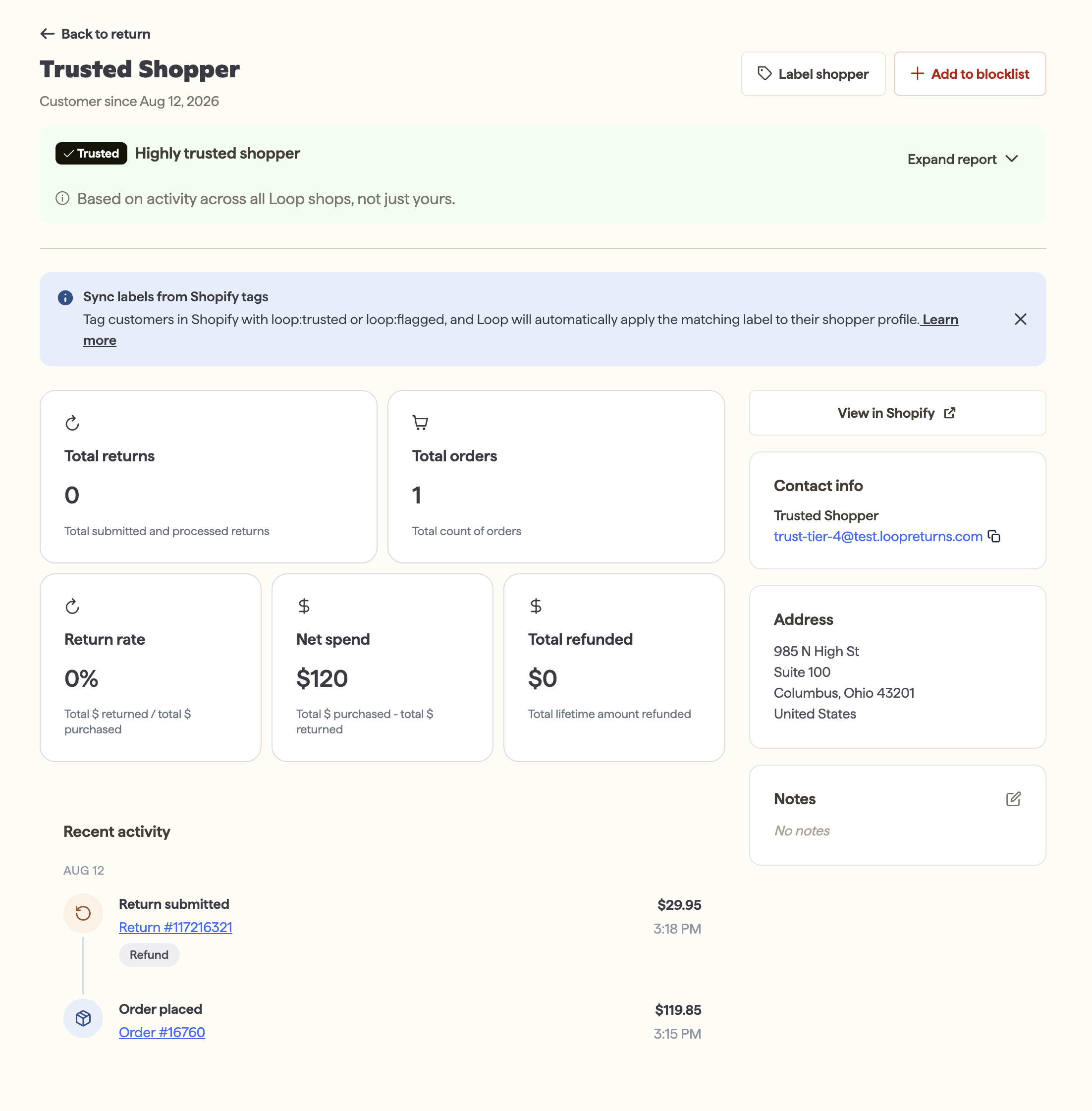
The shopper page — your store's own history with that shopper: total orders, returns, lifetime return rate, net spend, refunds issued, and a full order/return timeline going back three years. You can apply a Shopper Label (Trusted or Flagged) to any shopper, specific to your store.
Shopper Trust — a Loop-computed signal, shown alongside your store's own data, reflecting how trustworthy that shopper has been across every Loop brand they've ever returned to — not just yours.
Why it matters
See a shopper's full history with your store in one place, instead of digging through orders and returns separately
Automate return outcomes for your best shoppers, with no manual labeling required
Get a signal on shoppers you've never seen before — Shopper Trust draws on a shopper’s behavior across the whole Loop network, not just your own order history
Make faster, more confident calls on returns that have been flagged or need manual review
Use Cases
A return is flagged as high risk. You check the shopper page and see it's a customer's first return across three orders over two years — you approve without escalating.
A shopper is brand new to your store, but Shopper Trust shows them as Trusted based on their history elsewhere on the Loop network — you send their exchange out without waiting for the returned item to arrive.
A shopper's return looks suspicious for reasons specific to your store, so you label them Flagged and route their future returns to manual review with a Workflow.
How it works
Shopper page
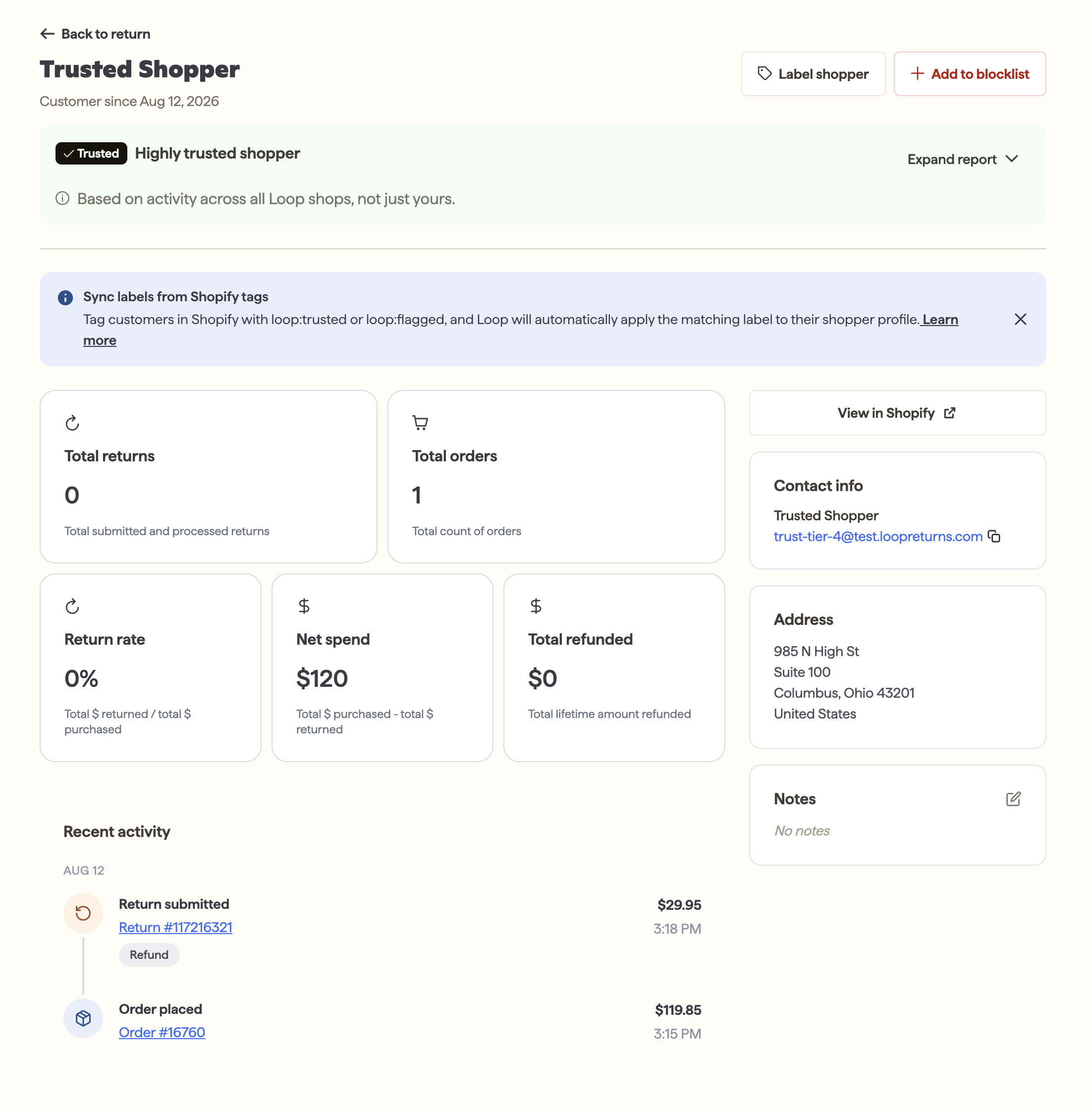
Every shopper has a page you can reach from a link on the return detail page. It shows:
Total orders, total returns, lifetime return rate, lifetime net spend, and total refunds issued — all specific to your store
A link to their Shopify customer profile
A shopper timeline: every order and return with that shopper, going back three years
Shopper Trust
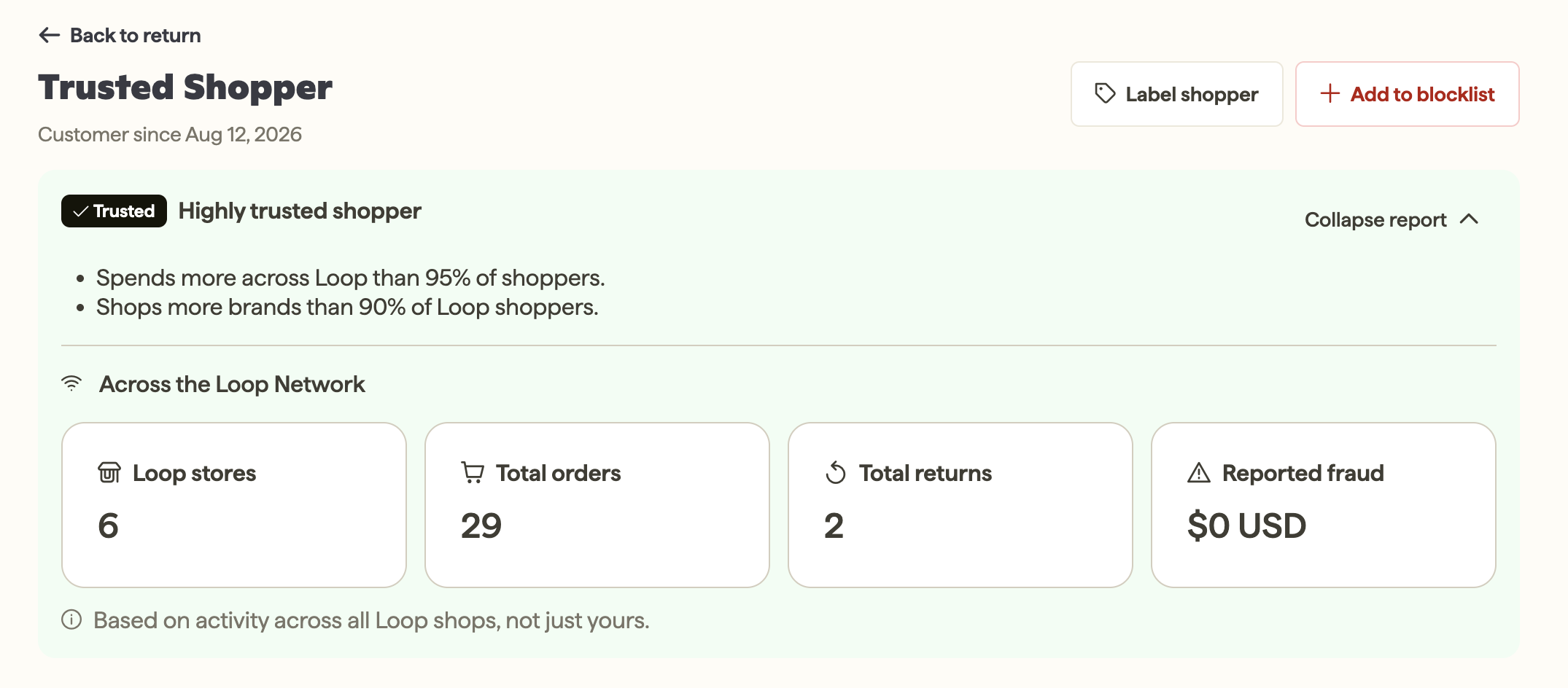
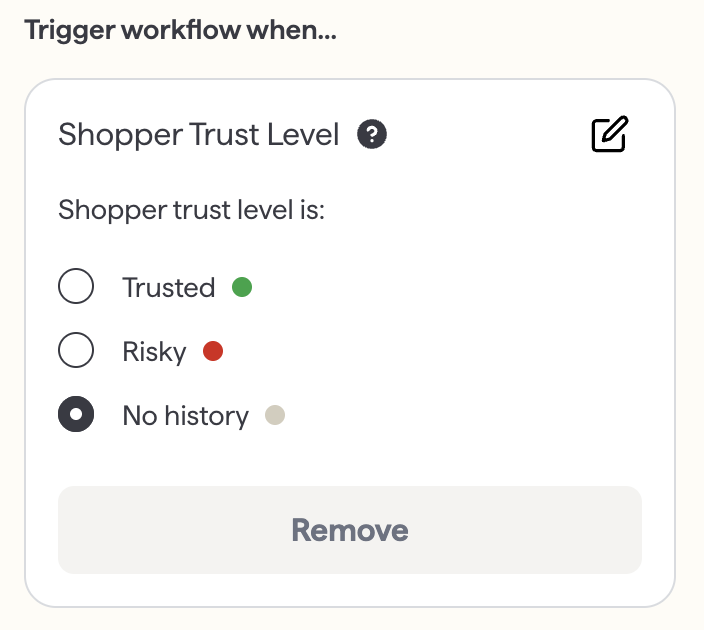
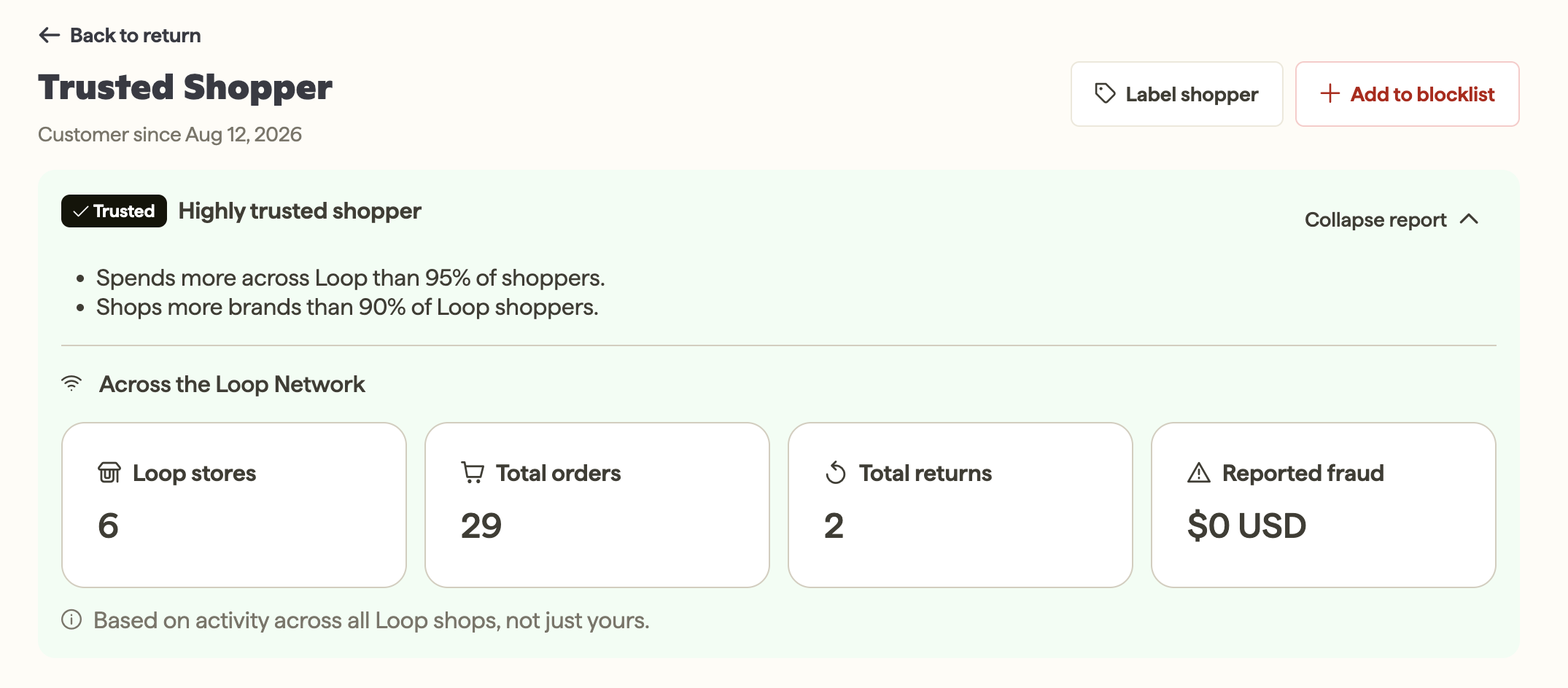
Alongside your store's own data, the shopper page shows a Shopper Trust assessment — Risky, No History, or Trusted. Unlike Shopper Labels, you don't set this yourself: Loop continuously scores every shopper's behavior — how much of what they buy they actually keep — across every Loop brand they've shopped with, and updates the tier automatically. An "Across the Loop Network" panel breaks down how many Loop stores they've shopped at, plus their total orders, returns, and reported fraud across all of them.
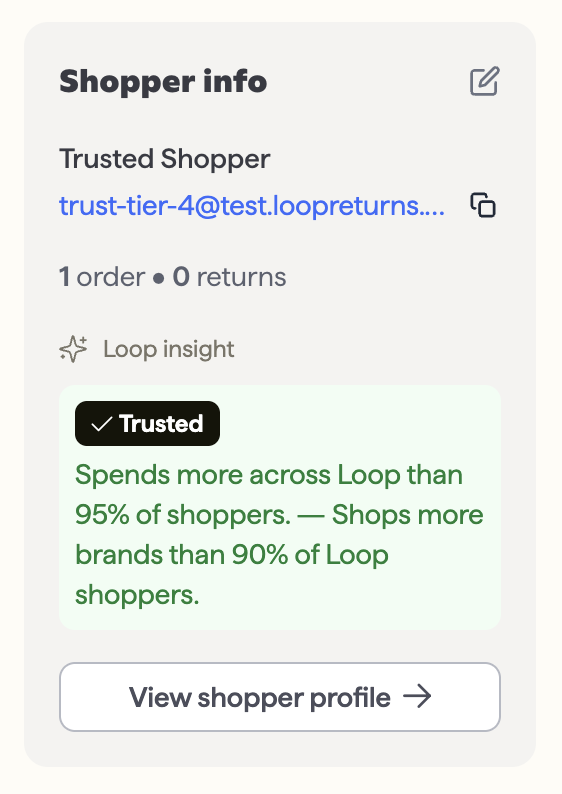
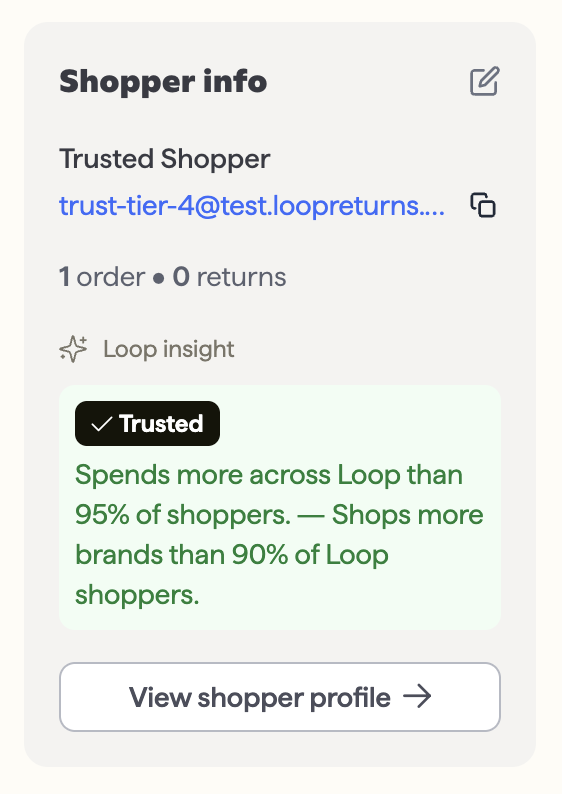
A compact version of the same trust tier also appears on the return detail page, next to the shopper card, so you can see it in the moment you're deciding on a return.
Note: Shopper Trust is based on behavior across every Loop brand, not just yours — it's the one part of Shopper Insights that draws on more than your own store's data.
Shopper Labels
You can label any shopper Trusted or Flagged directly in the Loop admin, with an optional note explaining why. Labels are specific to your store, persist on the shopper's page for all future returns, and are visible only to your team. You can also blocklist a shopper directly from the shopper page.
Alternatively, Loop can read Shopify tags to automatically label shoppers in Loop:
loop:trusted→ applies the Trusted labelloop:flagged→ applies the Flagged label
Tip: Use Shopify Flow to map your existing tags to Loop’s specific tags, and update shoppers in both places automatically. If you add a VIP tag to a shopper via your loyalty program, you can set up a Shopify Flow to automatically also tag that shopper with loop:trusted, for example.
Important: This sync only works one direction, from Shopify into Loop. Labels or notes you add in Loop don't sync back out to Shopify.
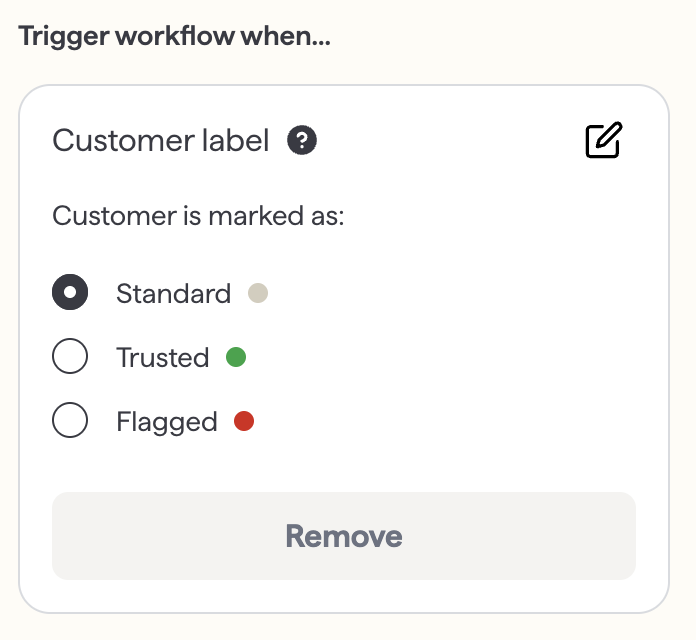
Shopper Labels and Shopper Trust Tier are independent — labeling a shopper in Loop doesn't change their network trust tier, and each can be used on its own as a condition in Workflows.
Setup
The shopper context card, timeline, and Shopper Trust all show up automatically — there's nothing to turn on.
To act on shopper labels or trust assessment automatically:
Navigate to Settings > Workflows and create a new workflow from scratch.
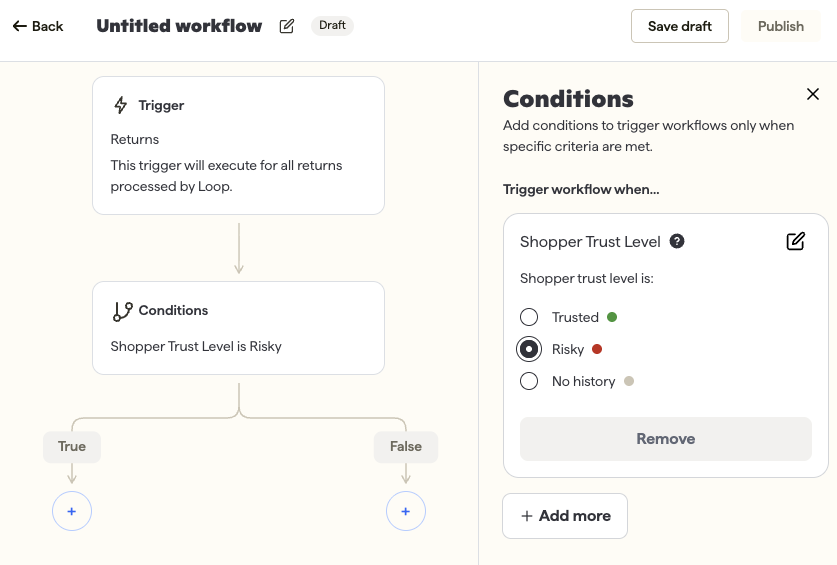
Add a condition and choose Shopper Label (to key off a label you've applied) or Shopper Trust Level (to key off Loop's network-wide signal — Risky, No History, or Trusted).
Set the action you want — for example, route to manual review, require an inspection, or process on in-transit.
Click Save to apply your workflow.
Tip: Loop offers a prebuilt template, Auto-process returns for trusted shoppers, that automatically processes a return's outcome as soon as it's scanned in transit for shoppers in the Trusted tier. Find it in the workflow template gallery, or as a recommendation on your Loop admin home page.
Admin and portal experience
FAQ
Why can Loop tell me about a shopper's history at other stores?
Shopper Trust Tier is Loop's read on a shopper's behavior across every Loop brand they've shopped with, not just yours. It's the one part of Shopper Insights that isn't limited to your own store's data, which lets Loop give you a signal on shoppers you've never seen before.
Can I turn off Shopper Trust, or set my own definition of "Trusted"?
No — Shopper Trust is defined and maintained by Loop and updates automatically as a shopper's behavior changes. You can still use your own Shopper Labels, which are entirely under your control, alongside it.
What does "No History" mean?
A shopper shows as No History when Loop doesn't have enough order and return activity on them yet, across the whole network, to categorize them as Risky or Trusted.
Does labeling a shopper change their Shopper Trust Tier?
No. Shopper Labels and Shopper Trust Tier are independent signals. Your label only applies at your store; Shopper Trust Tier reflects behavior everywhere on the Loop network.
Where do I see Shopper Trust Tier?
On the shopper page, and on the return detail page next to the shopper card.
Please reach out to support@loopreturns.com with any additional questions.