
Slack Integration
OVERVIEW
This article explains Loop's Slack integration — how to connect your Slack workspace to Loop, what it powers, and what to know about workflow notifications and product update notifications. Use this article to set up the integration and troubleshoot common issues.
Use the menu on the left to quickly navigate this article.
What it is
Loop's Slack integration connects your Slack workspace to Loop so Loop can send messages into your channels.
Today, the integration powers two types of messages:
Loop product announcements — opt-in updates from Loop about new features and changes
Workflow-triggered notifications — Slack messages sent from workflows you've configured in Loop
More message types will be added over time.
Note: Slack messages are sent to public channels only. Private channels and direct messages are not supported. Each Loop shop can connect to one Slack workspace at a time.
Setup
[VIDEO: 30–60 second walkthrough showing the Slack tile being toggled on, the Slack OAuth approval screen, and landing back in Loop with the integration connected]
Follow the steps below to connect Slack to Loop:
Navigate to Settings > Integrations
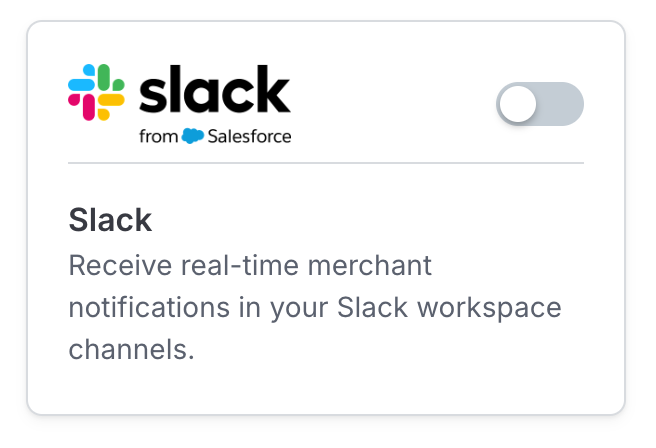
Find the Slack tile and toggle it on.
You'll be redirected to Slack in a new tab. Select the workspace you want to connect, then click Allow to approve the connection.
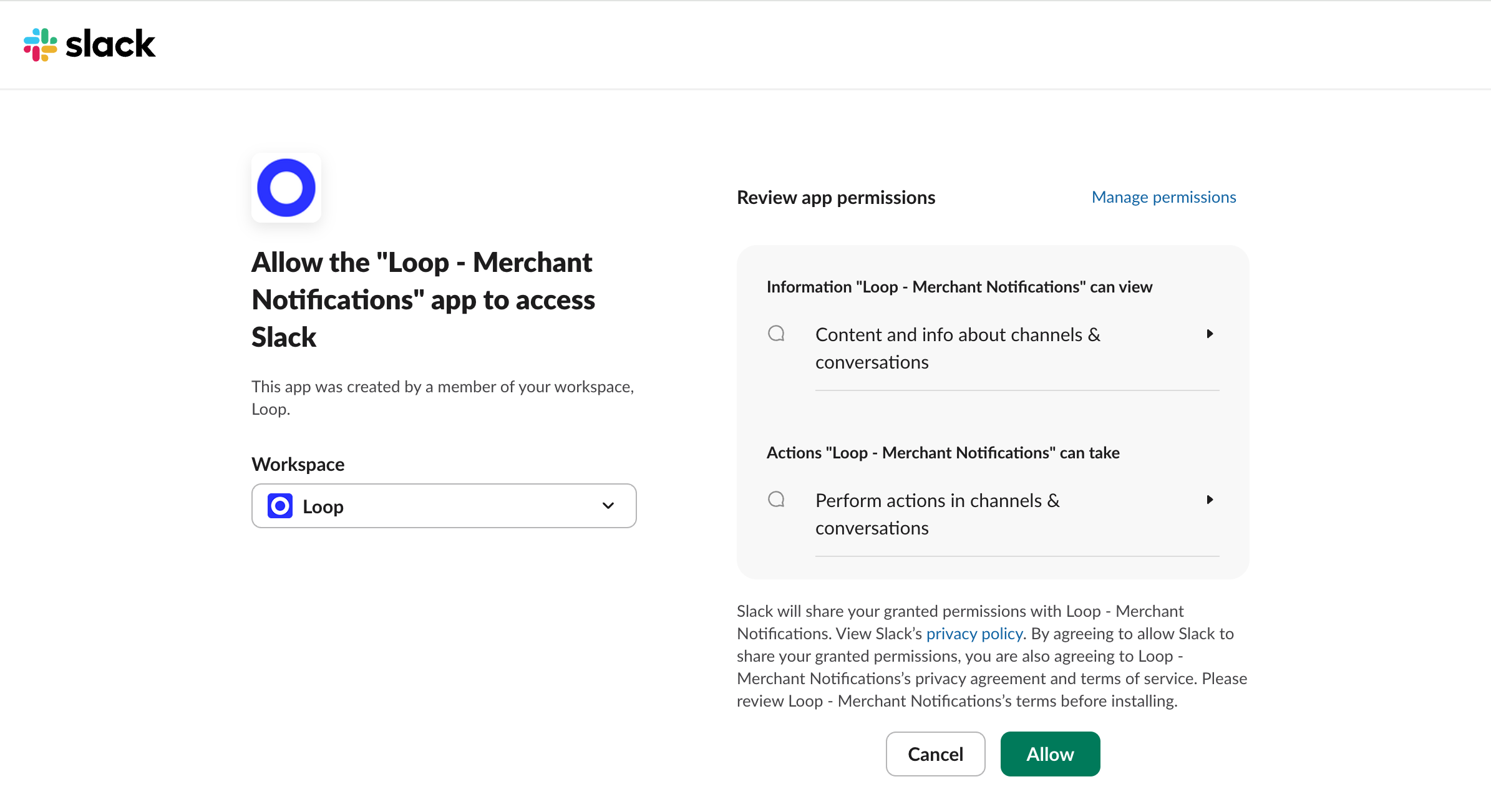
Exit out of this tab to return to Loop. The integration is now live.
Tip: Create a dedicated channel for Loop notifications (for example, #loop-notifications) instead of routing them into a busy general channel. It makes activity easier to scan.
Subscribing to Loop product announcements
You can subscribe a Slack channel to product announcements from Loop — updates about new features and changes.
To subscribe a channel:
On the Settings > Integrations page, click the gear icon on the Slack integration tile.
Enter the channel ID of the public channel you want to receive announcements in.
Select the announcement types you want to hear about.
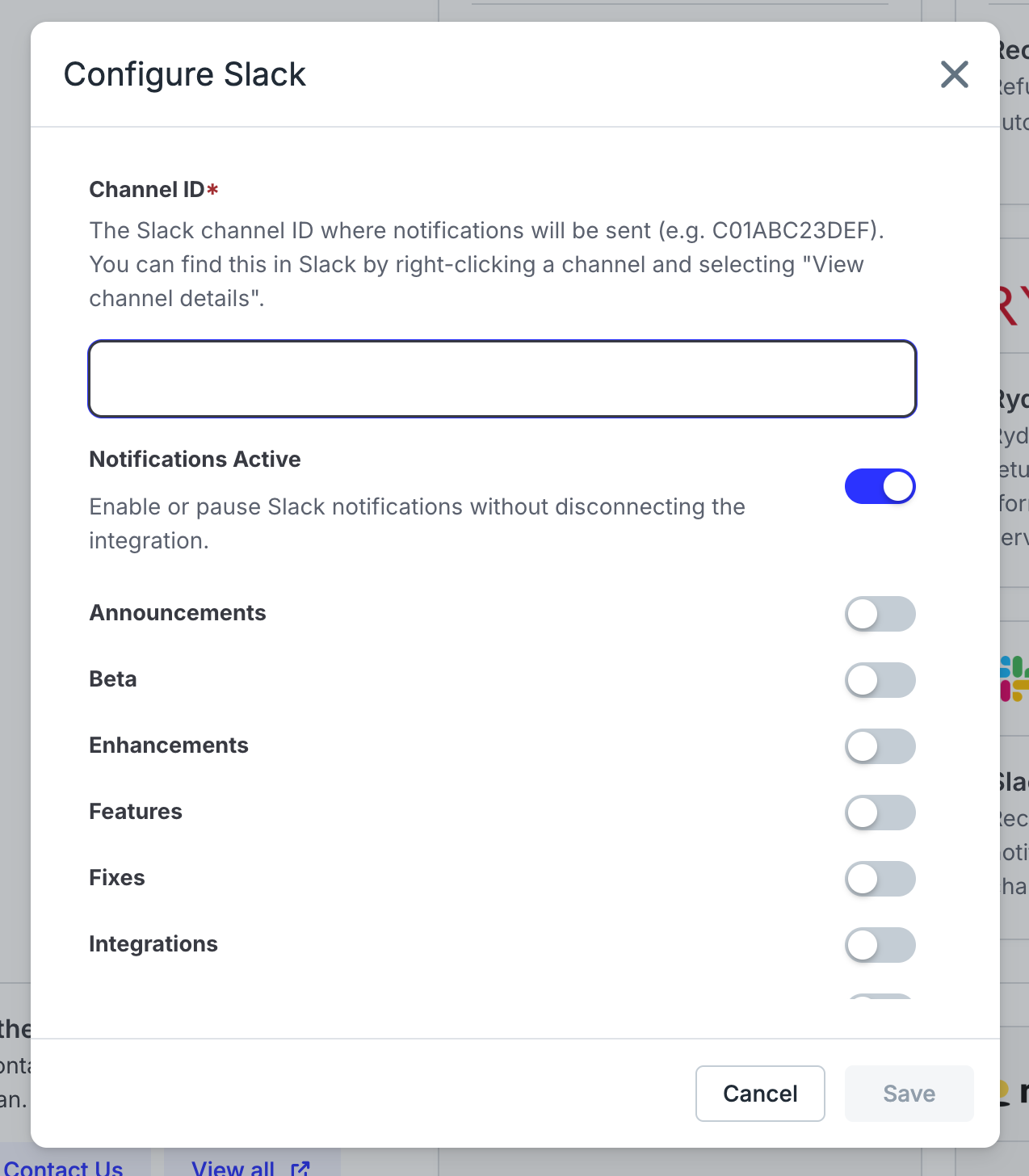
Click Save.
Note: Like all Slack messages from Loop, product announcements can only be sent to public channels.
Sending Slack notifications from a workflow
Once Slack is connected, you can configure any workflow to send a Slack notification when it triggers. Loop handles the message format — you just provide the channel and an optional custom message.
Note: If you haven't connected Slack yet, the Send Slack notification action will prompt you to connect it before you can configure the rest of the action.
Each Slack notification includes:
The name of the workflow that triggered it
The shop name and the return ID
Your custom message (optional)
A View return button that links directly to the return in Loop
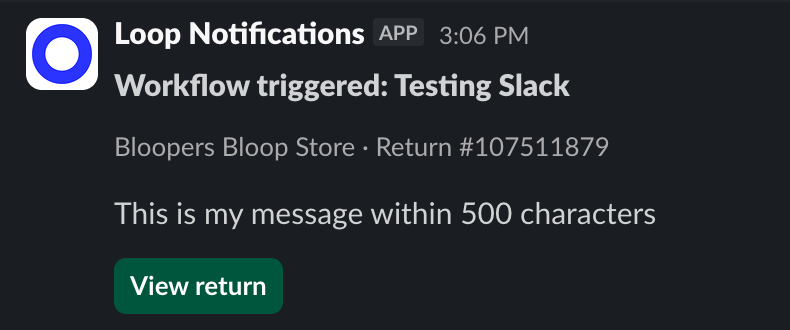
To set up a Slack notification on a workflow:
In Slack, find the channel ID of the public channel you want to notify.
Tip: To find a channel ID, right-click the channel name in Slack, choose View channel details, and scroll to the bottom — the channel ID is at the bottom of that panel.
In Loop, open the workflow you want to add a notification to (or create a new one).
Add a Send Slack notification action to the workflow.
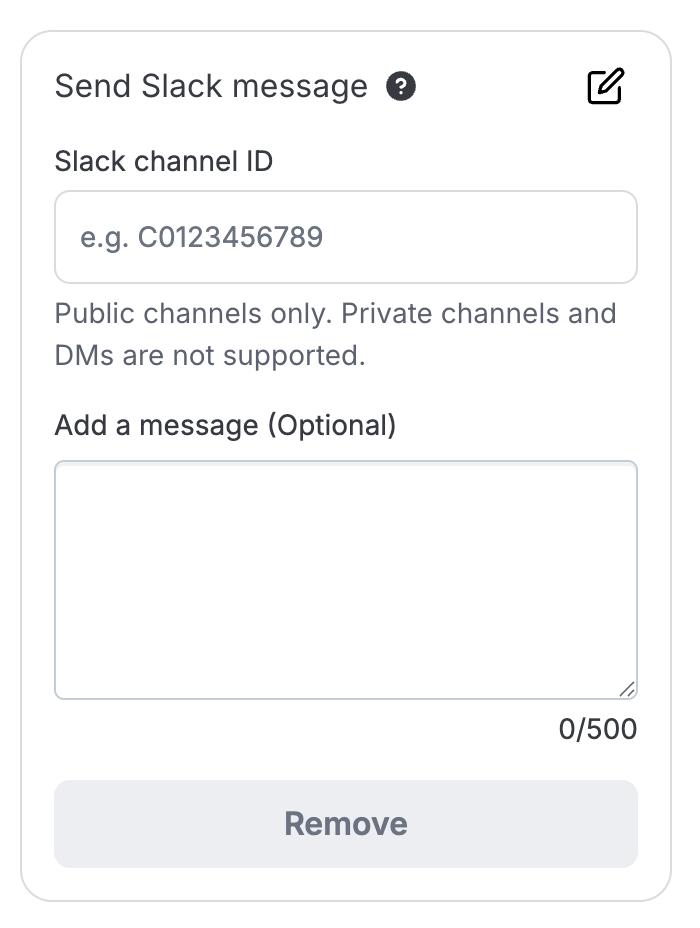
Paste the channel ID into the channel field.
Optionally, add a custom message (up to 500 characters). This message will appear on every notification this workflow sends.
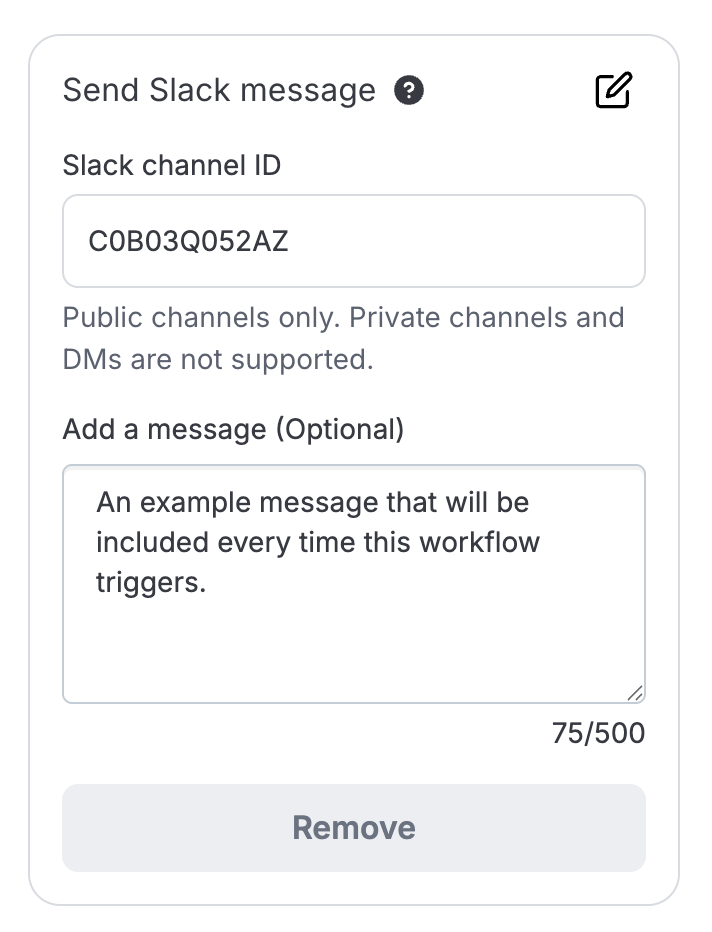
Save the workflow.
Important: The channel must be public. Slack notifications cannot be sent to private channels or as direct messages.
FAQ
Can I connect more than one Slack workspace? No. Each Loop shop can connect to one Slack workspace at a time.
Can Loop send messages to private channels or DMs? No. Only public channels are supported.
What happens if Slack gets disconnected? Workflows configured to send Slack notifications will show errors on the affected returns. Reconnect the integration on the Settings > Integrations page to resolve.
Do I need to be a Slack admin to connect the integration? No, any workspace should
How do I set up a workflow that sends a Slack notification? See the [Workflows help center article — placeholder link]. Once Slack is connected here, it becomes available as a destination in the workflow builder.
Please reach out to support@loopreturns.com with any additional questions.