
Smile.io Integration
OVERVIEW
The Smile.io integration connects your Smile.io loyalty program to Loop, syncing your loyalty audience into Loop custom lists so you can use them in Workflows to give loyalty members and VIPs a differentiated return experience. This article covers how the Smile.io integration works, how to connect and set up your first loyalty list, and how to use it in Workflows to reward your best customers at return time.
Use the menu on the left to quickly navigate this article.
What it is
The Smile.io integration is an OAuth connection between Loop and Smile.io. Once connected, it syncs your Smile.io loyalty audience directly into Loop custom lists. Those lists can then be used anywhere Loop supports lists — most importantly in Workflows — to apply different return policies based on a customer's loyalty status or VIP tier.
Each list item includes per-customer loyalty metadata: points balance, VIP tier name, tier expiry, loyalty state, and member-since date. Lists stay up to date automatically in the background — no manual exports or re-syncs needed.
Why it matters
Loyalty programs and returns typically live in separate systems, making it hard to reward loyal customers with a better post-purchase experience without manual workarounds. This integration closes that gap by bringing Smile.io audience data directly into Loop's Workflow engine. It lets you:
reward VIPs and members with more generous return policies automatically
use real-time loyalty state instead of static tags or manually maintained lists
reinforce the value of loyalty membership at one of the most emotionally charged moments in the customer journey
differentiate by tier — give Gold VIPs something different from Silver without splitting workflows manually
Tip: For a deeper look at why pairing loyalty and returns drives retention, read Smile's blog post Turn Returns Into Retention: How Smile and Loop Keep Customers Coming Back.
Use Cases
Merchants use Smile.io lists in Loop Workflows to differentiate the return experience based on loyalty status. Common examples include:
Higher refund value for VIPs — offer more generous bonus store credit to customers in a specific VIP tier
Extended return windows for members — give loyalty members a longer return window or waive return fees
Free return shipping for members — scope free label offers to your loyalty audience
Gating premium return methods — restrict Instant Exchanges or Shop Now to loyalty members and candidates only
Win-back for candidates — target customers who have signed up but not yet qualified as full members with different incentives than established members
Tip: For maximum flexibility, create one Loop list per VIP tier rather than a single "all members" list. This lets you apply different policies to different tiers without complex workflow branching.
How it works
When you create a Smile.io-sourced list in Loop, you choose one of three audience types:
All Loyalty Members — every customer currently in an active member state
All Loyalty Members & Candidates — members plus candidates (customers who have signed up but haven't yet qualified as full members)
A specific VIP tier — one list scoped to a single VIP tier from your Smile.io program
List membership is matched on email address. Loop keeps each list current in the background — when a customer's loyalty state changes in Smile.io, it's reflected in the Loop list at the next sync cycle.
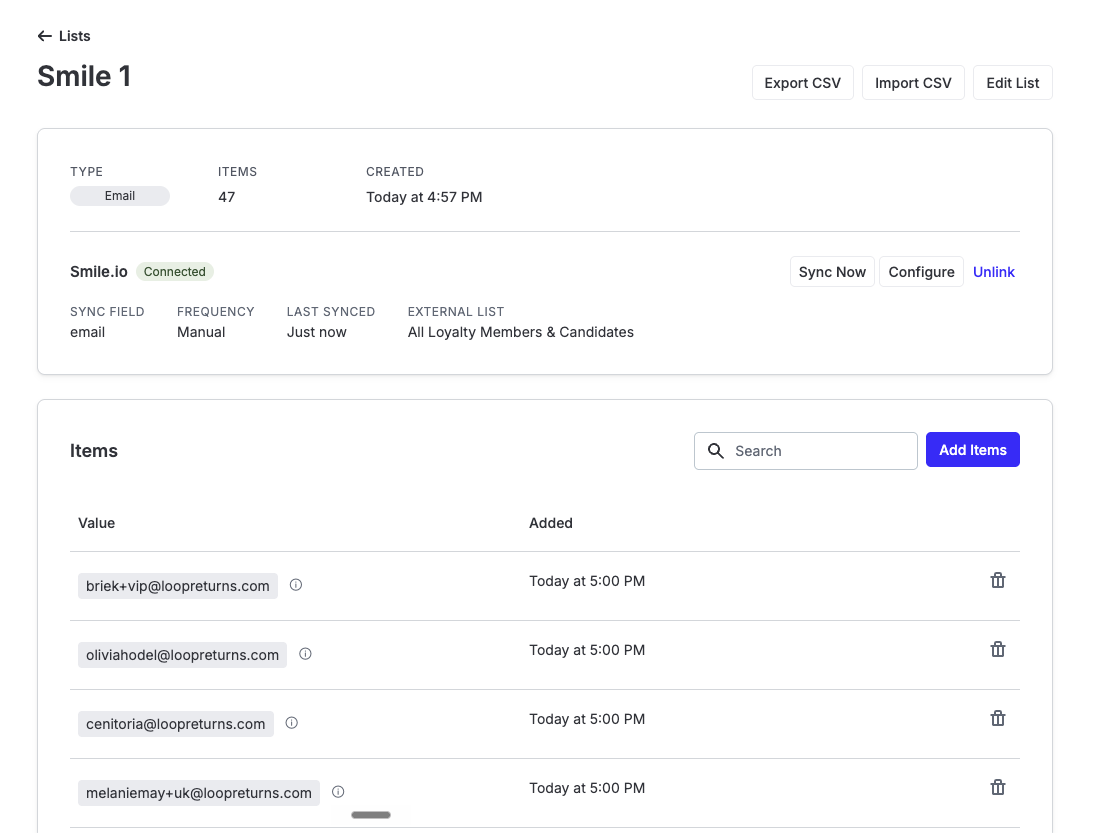
Each list item carries the following loyalty metadata, which is visible on the List Detail page in Loop Admin and available for policy decisions in Workflows:
points_balancevip_tier_namevip_tier_expires_atstate(member, candidate, etc.)
Setup
Follow these steps to connect Smile.io and create your first loyalty list:
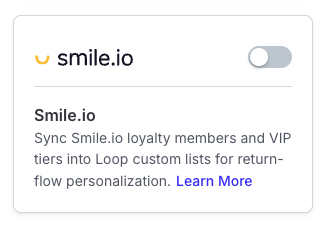
In Loop Admin, navigate to Tools & Integrations → Smile.io and toggle the integration ON.
Click Login with Shopify and authorize Loop in the Smile.io OAuth screen. You'll be redirected back to Loop with the integration showing as connected.
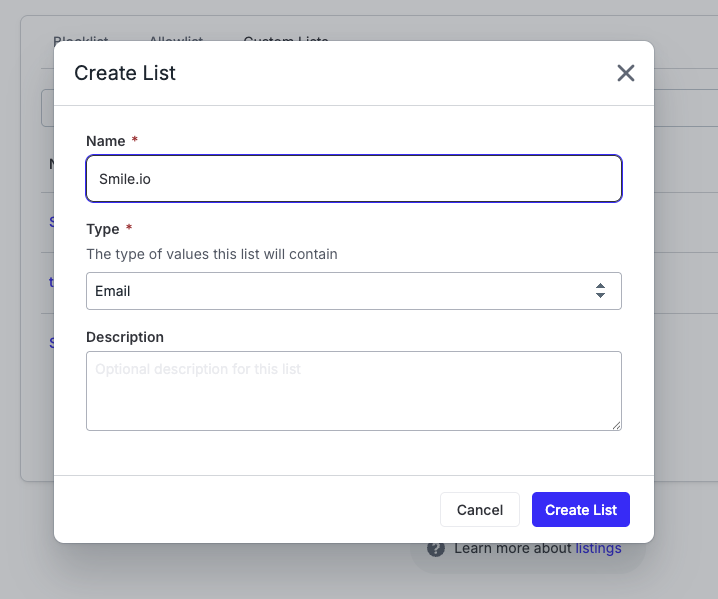
Go to Returns > Blocklist & allowlist > Custom Lists tab and click Create list.
Enter list Name, select Email as list type, and click Create list.
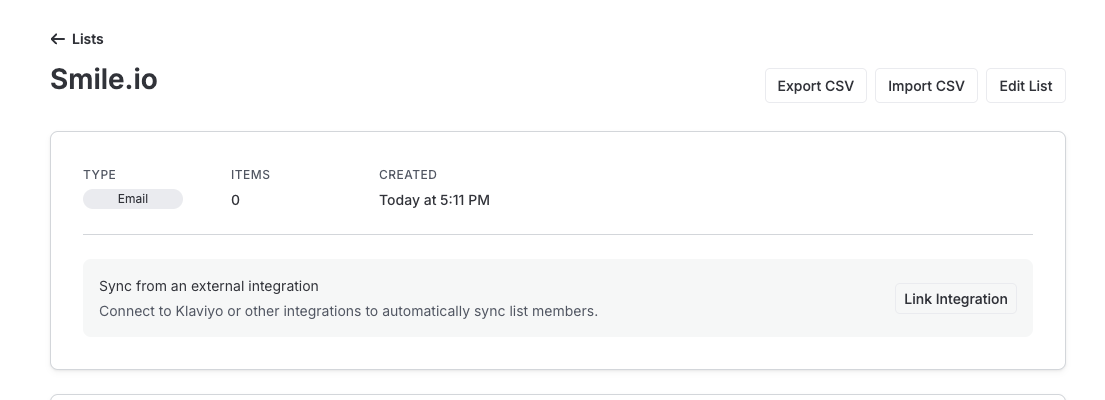
Click Link integration then choose Smile.io as the list source.
Select your audience type: All Loyalty Members, All Loyalty Members & Candidates, or a specific VIP tier.
Save the list. Loop will sync the audience in the background — no further action needed.
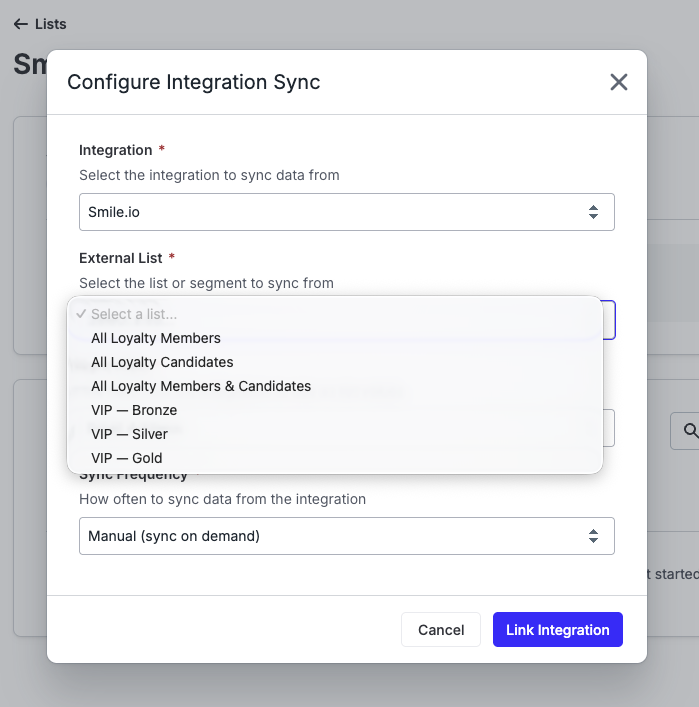
Note: Lists can be set to auto-sync (recommended) and will keep themselves up to date automatically. You do not need to manually re-sync after the initial configuration.
Use the list in a Workflow > Customer email condition to scope policy actions to your loyalty audience.
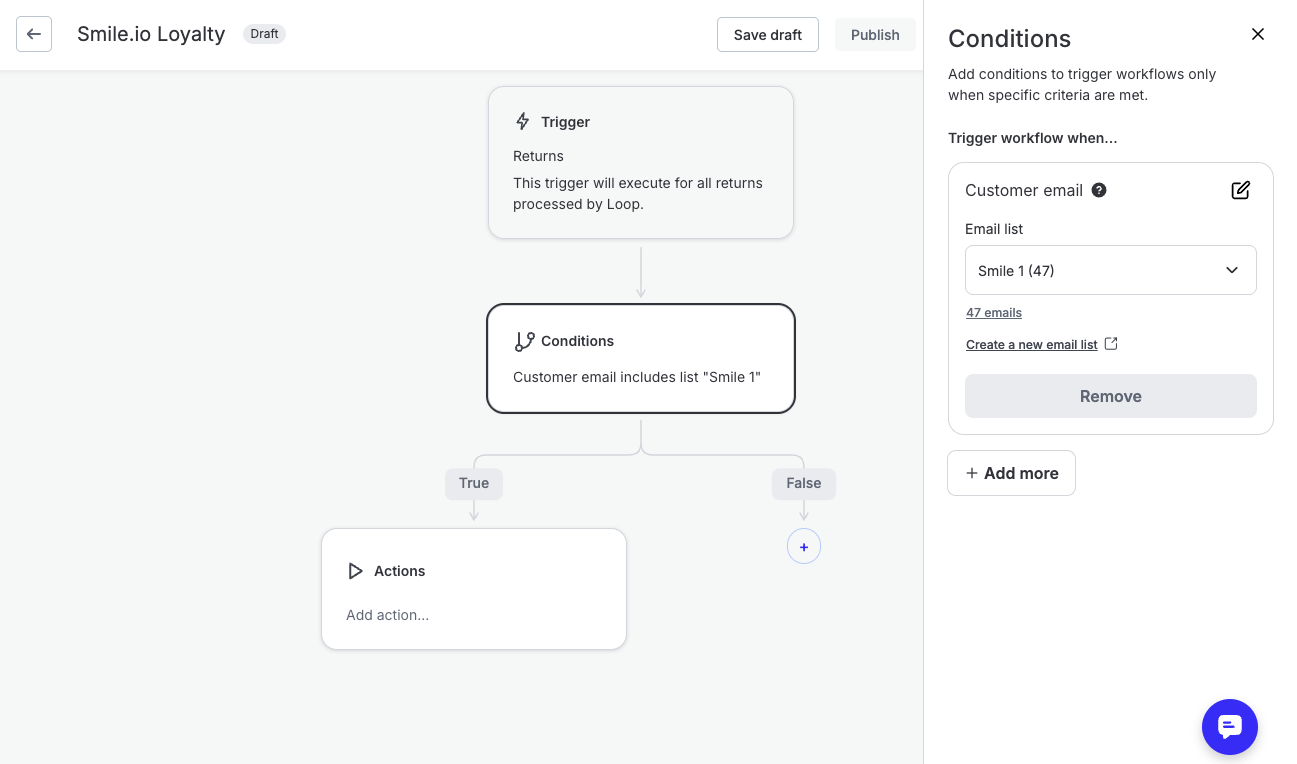
Admin and portal experience
Once a Smile.io list is created and synced, it behaves like any other Loop custom list. You can:
View list members and their loyalty metadata on the List Detail page in Loop Admin
Reference the list as a condition in any Workflow
Use it across multiple Workflows simultaneously — for example, one workflow for return window extensions and another for bonus credit offers
From the shopper's perspective, the return portal experience changes based on whichever Workflow conditions are met — the loyalty list is entirely behind the scenes.
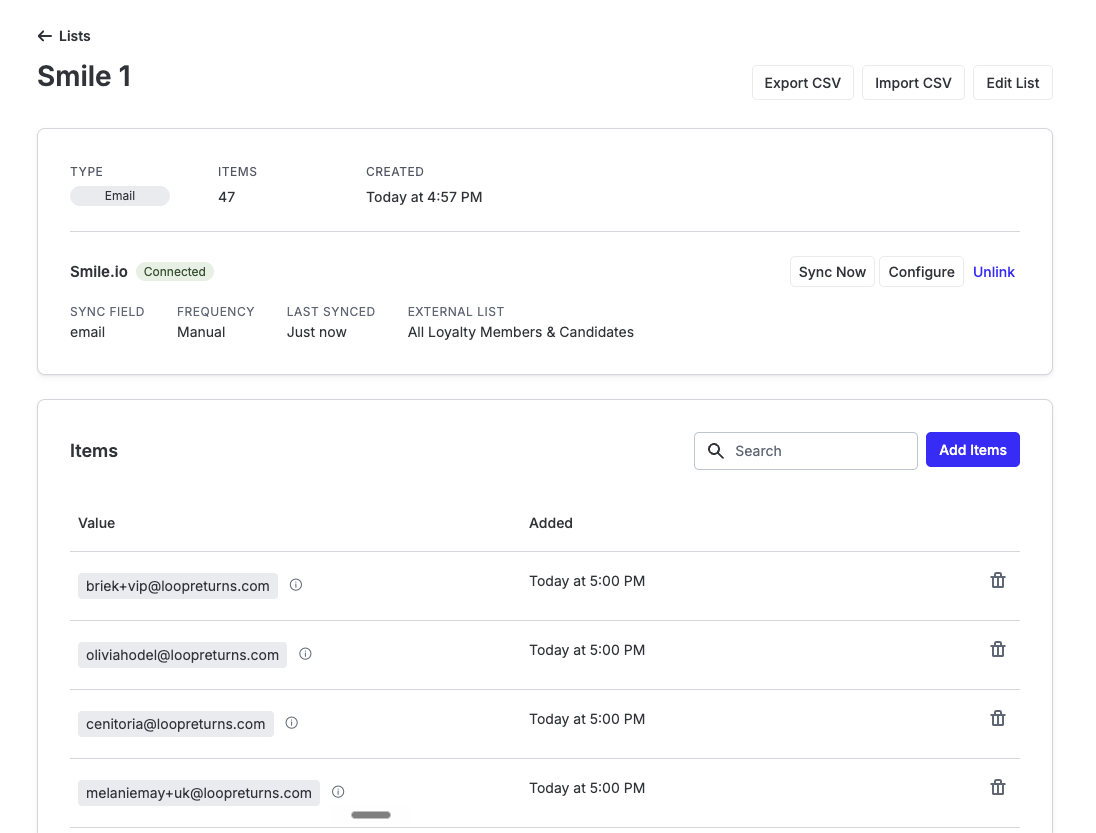
Plan information
To check if the Smile.io integration is included in your plan, please review the Pricing page on Loop's website.
If you want to add this feature, please contact your Merchant Success Manager to amend your account.
FAQ
Will syncing affect my Smile.io billing?
No. The integration reads your Smile.io audience data via OAuth — it does not create, modify, or delete any Smile.io records, and does not interact with your Smile.io billing in any way.
How often do lists refresh?
Lists sync automatically in the background on a regular cycle. You don't need to trigger syncs manually. If a customer's loyalty state changes in Smile.io, their Loop list membership will update at the next sync.
What happens if a VIP tier is removed from Smile.io?
If the VIP tier a list is based on no longer exists in Smile.io, the list will stop receiving updates. We recommend reviewing your Loop lists if you restructure your Smile.io VIP program.
What if a customer doesn't have an email address in Smile.io?
List membership is matched on email. Customers without an email on file in Smile.io will not appear in the corresponding Loop list. This is rare but worth noting for edge cases.
Can I use one Smile.io list in multiple Workflows?
Yes. A synced list can be referenced as a condition in as many Workflows as you need.
What happens to a list item when a customer's tier changes?
Their list membership in Loop is updated at the end of the next completed sync cycle. There may be a short lag between a tier change in Smile.io and the update being reflected in Loop.
The Smile.io connection shows an error — what should I do?
Try disconnecting and reconnecting via Tools & Integrations → Smile.io. If the error persists, contact support and we'll help troubleshoot the OAuth connection.
Please reach out to support@loopreturns.com with any additional questions.