
Exclude Products and Customers from Checkout+
OVERVIEW
This article explains how to set up product and customer exclusions for Checkout+.
In some cases, products may be ineligible for return due to a sale or the type of item, like a gift card. If an order only includes ineligible items, Checkout+ should be excluded from that order. You can exclude products for both Returns Coverage and Packapge Protection (if using). There are three ways you can accomplish this: product tags, line item properties, and discount codes. You can also exclude specific customers based on customer tags.
Use the menu on the left to quickly navigate this article.
Setup
Option 1: Product Tags
Create An Excluded Product Tag and/or Line Item Property In Your Loop Admin
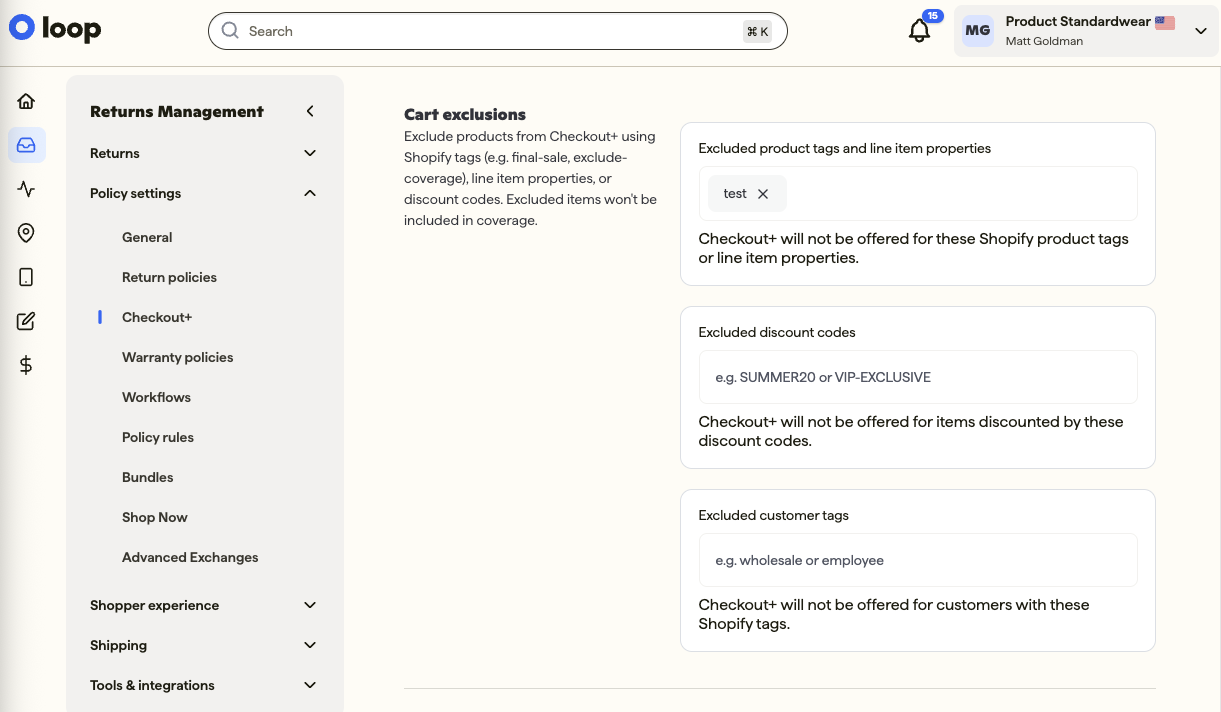
Within your loop admin portal, go to Returns Management > Policy settings > Checkout+ tab and find the section Cart Exclusions on the page.
Within the Excluded product tags and line item properties input, type in a tag name you'd like to use for excluded products and hit enter. You can add multiple tags. Checkout+ will look for any matching tag when considering if the item is excluded.
Note: Type in any tag or line item property to match your Shopify setup. e.g. "finalsale", "final sale", "Final Sale", "finalSale", "final-sale", "final_sale". This field is case sensitive.
Save your changes.
Mark Products with Excluded Tag in Shopify Admin
Navigate to your Shopify store's admin panel and select the products tab.
On the product's index page, select a product you'd like to exclude from offering Checkout+.
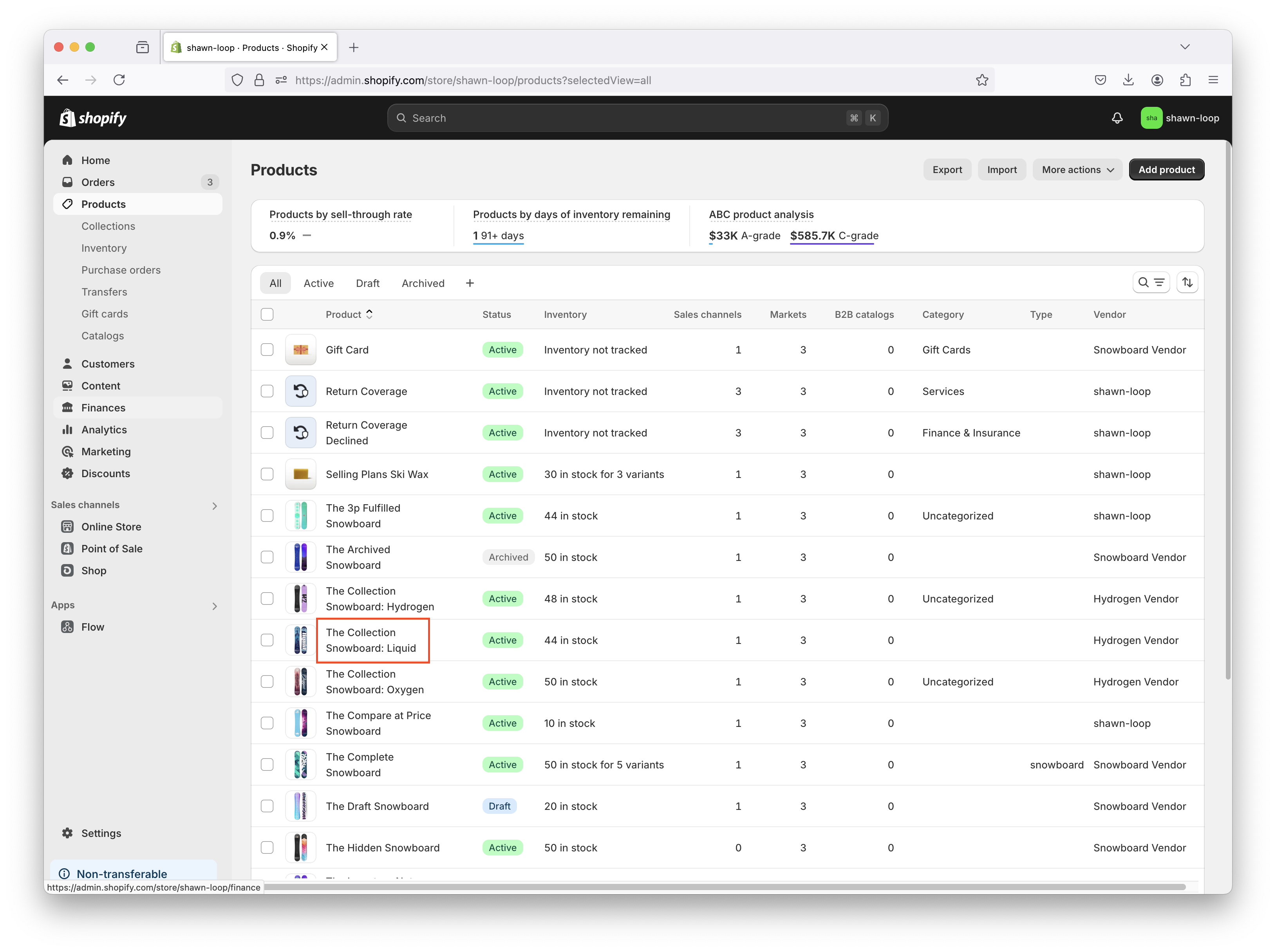
Find the Tags section in the far-right column.
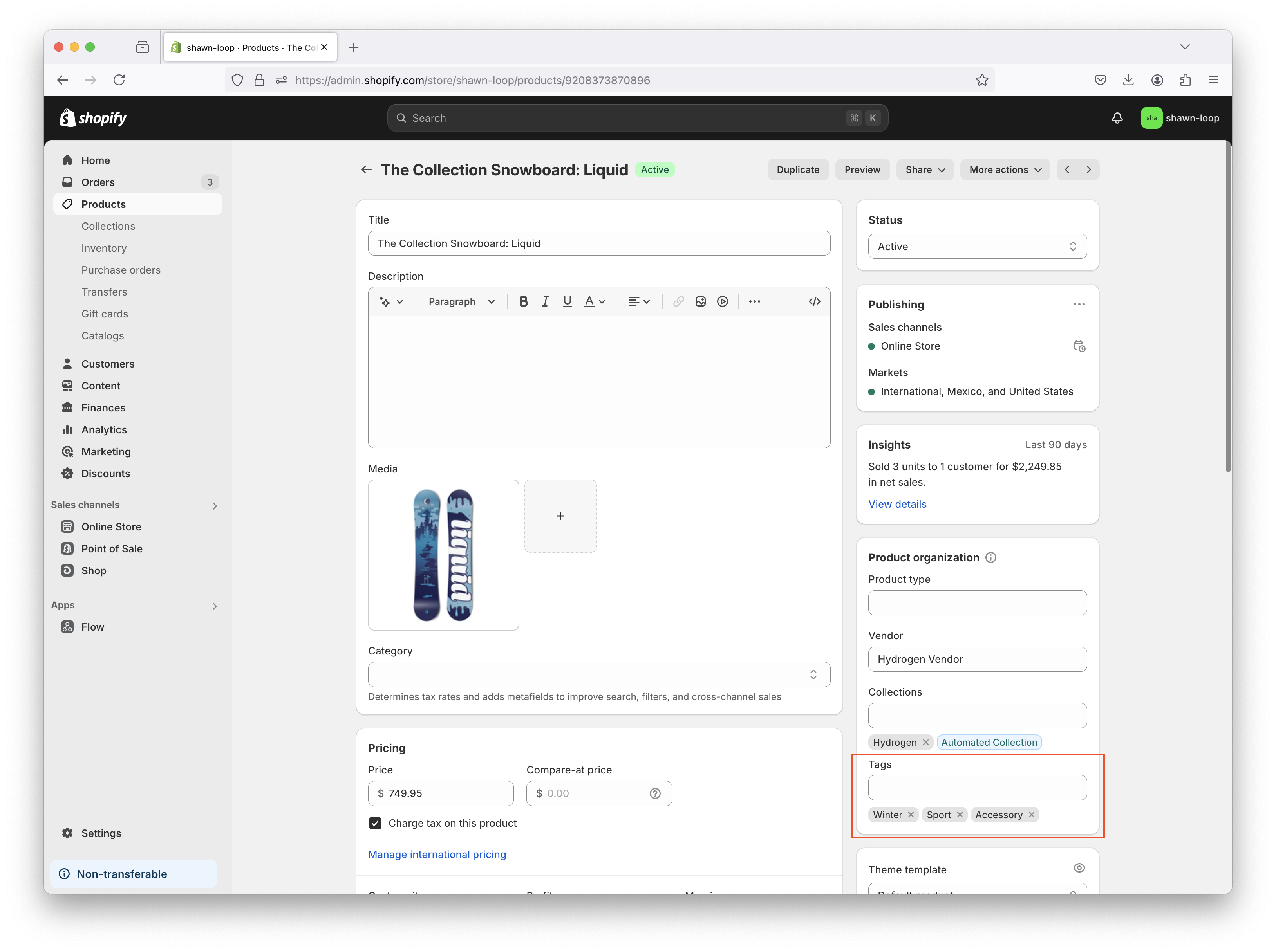
Enter the excluded tag you created from your loop admin panel.
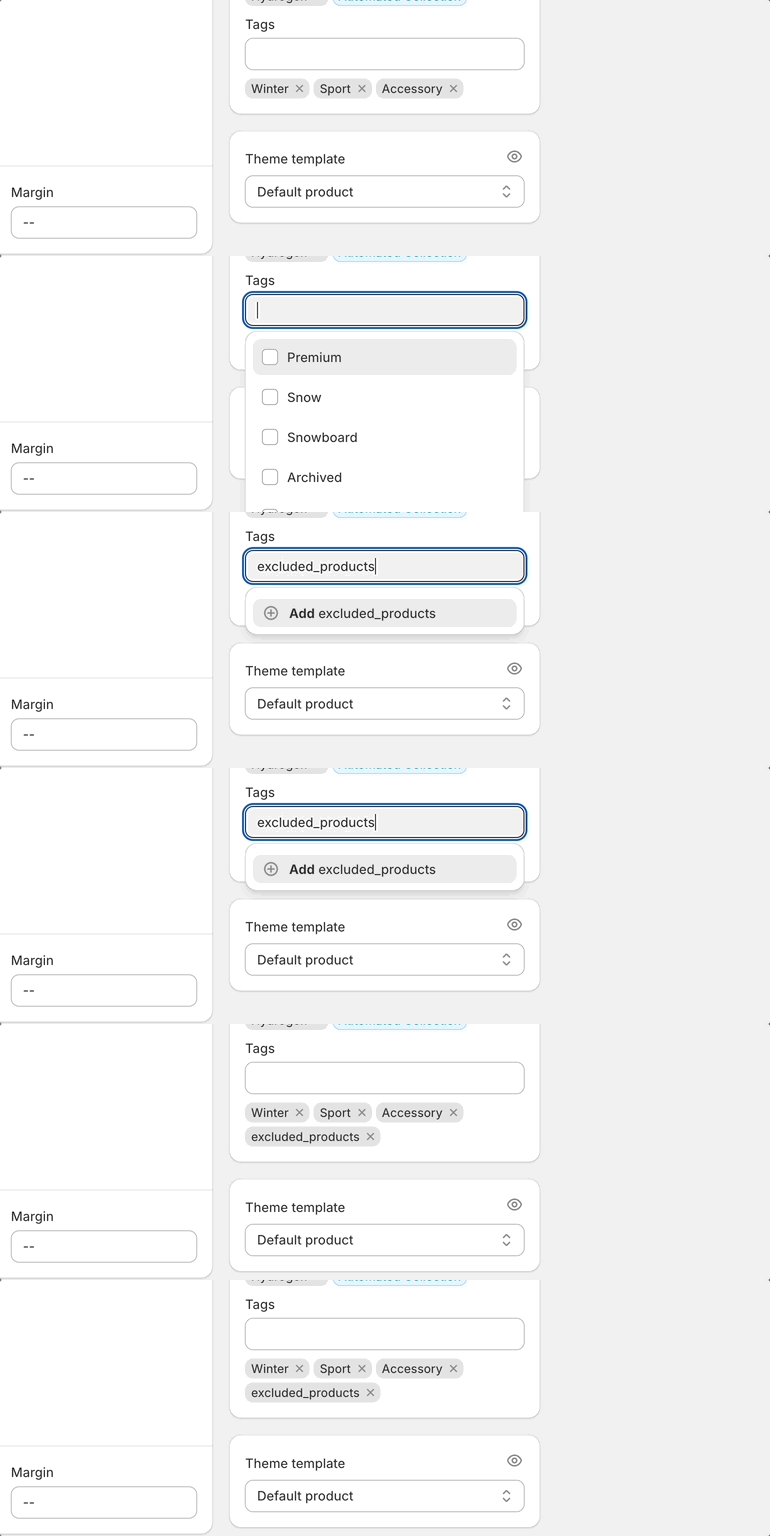
Note: Tags are character and case-sensitive. Be sure to match the style of your tag precisely as it's entered in your loop admin panel to avoid any issues.
Confirm your excluded tag is set and save your changes.
This is complete! Feel free to run a test order with the final sale product to confirm that Checkout+ does not appear in checkout.
Option 2: Line Item Properties
Mark Products with Excluded Line Item Properties in Shopify Theme Editor
You can add custom code into your theme editor in order to use Line Item Properties to exclude carts from Checkout+. Line Item Properties can be added dynamically with Javascript/Typescript, or using custom input fields in the product form.
Follow the Shopify Help Center here for setup instructions: https://shopify.dev/docs/storefronts/themes/architecture/templates/product/overview#line-item-properti
Option 3: Discount Codes
Create An Excluded Discount Code In Your Loop Admin
Within your loop admin portal, go to Policy settings > Checkout+ tab and find the section Cart Exclusions on the page.
Within the Excluded discount codes input, type in a tag name you'd like to use for excluded products and hit enter. You can add multiple discount codes. Checkout+ will look for any matching code when considering if the item is excluded.
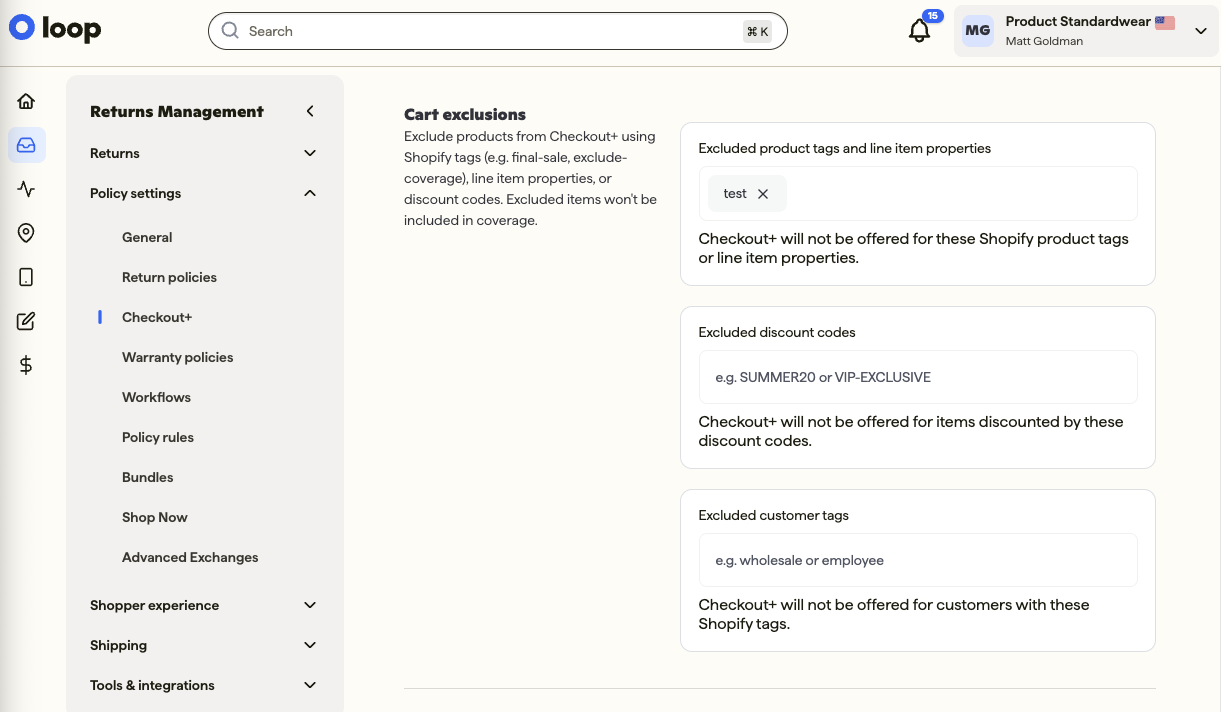
Note: Type in any tag or line item property to match your Shopify setup. e.g. "finalsale", "final sale", "Final Sale", "finalSale", "final-sale", "final_sale". This field is case sensitive.
Option 4: Customer tags
Create An Excluded Discount Code In Your Loop Admin
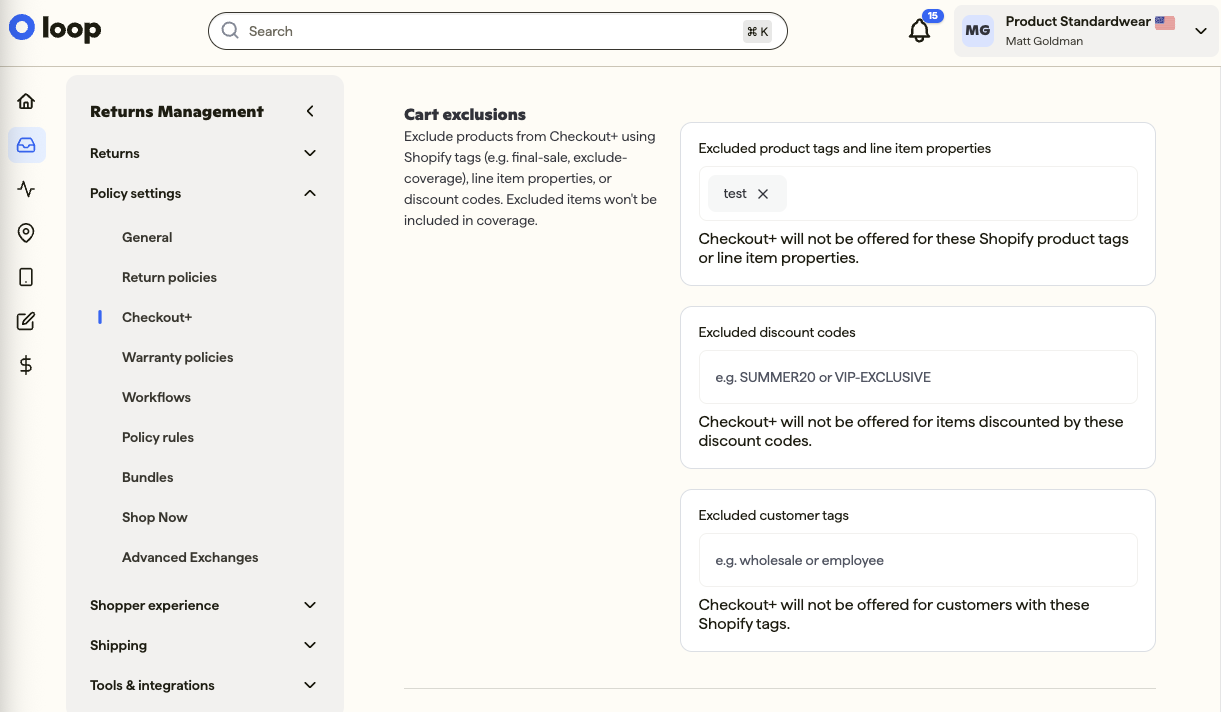
Within your loop admin portal, go to Policy settings > Checkout+ tab and find the section Cart Exclusions on the page.
Within the Excluded customer tags input, type in a tag name you'd like to use for excluded customers and hit enter. You can add multiple customer tags. Checkout+ will not be offered for customers with these Shopify tags.
FAQ
Can I use the same discount code to exclude both returns coverage and package protection? Yes. Simply enter the code in both the Returns Coverage and Package Protection exclusion fields. Each section is configured independently, so you can exclude from one or both offer types.
Does this work if discount codes are applied at checkout instead of in the cart? For Shopify Plus merchants, yes. Discount codes will be applied at checkout and update Checkout+ eligibility accordingly. For non-Shopify+ merchants, discount codes applied during checkout (not in the cart) will not trigger the exclusion. This is a Shopify limitation.
What happens if a shopper removes their discount code after Checkout+ was hidden? Checkout+ will reappear automatically. Eligibility is re-evaluated any time a discount code is added or removed.
Please reach out to support@loopreturns.com with any additional questions.