Klaviyo Customer Hub Integration
OVERVIEW
This article explains how to set up the Loop Returns integration with Klaviyo Customer Hub, which lets your shoppers start a return directly from the Customer Hub drawer on your site — without needing to find your standalone returns portal. It covers what shoppers see, the two-step setup (generate a Loop API key, then enable Loop Returns inside the Klaviyo Customer Hub Extensions menu), and frequently asked questions.
Use the menu on the left to quickly navigate this article.
What it is
Klaviyo Customer Hub is a customer-facing experience that gives logged-in shoppers a personalized view of their orders, recommendations, and post-purchase support — all from a drawer on your storefront. The Loop Returns integration adds a Start a Return button on delivered orders inside Customer Hub. When a shopper clicks it, they're sent straight into a personalized Loop return workflow with their order context already passed through — no manual entry required.
This integration is shopper-facing — different from the Klaviyo Helpdesk integration (which surfaces return data inside support agent tickets) and from the standard Klaviyo (email/marketing) integration (which sends Loop return events into Klaviyo flows for automation).
Note: Connecting Loop Returns to Customer Hub does not sync return data between Loop and Klaviyo. It provides a deep link so shoppers can start a return from inside the Customer Hub drawer. Loop remains the source of truth for return status, tracking, and history.
How it works
Once the integration is connected, the flow looks like this from a shopper's perspective:
A signed-in shopper opens the Orders tab in the Customer Hub drawer.
They click an order to see its details, status, and help options.
For any order that has been delivered, a Start a Return button appears in the order details.
Clicking Start a Return sends the shopper directly into the personalized Loop return workflow for that specific order. Order details are passed securely via Loop's deep-link API, so the shopper doesn't need to enter their order number, email, or any other identifier.
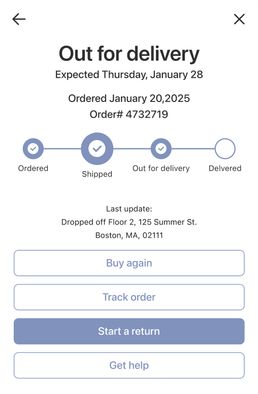
Note: The Start a Return button only appears on orders that have been delivered. Orders still in transit or unfulfilled will not show the button.
Setup
Before you begin, confirm:
You have an active Loop Returns account.
Customer Hub is enabled in your Klaviyo account. If you're not sure, check with your Klaviyo admin or see Klaviyo's Customer Hub setup guide.
You have permission to access Developer tools in Loop and Customer Hub settings in Klaviyo.
Step 1: Generate your Loop API Key
Log in to your Loop admin dashboard.
Navigate to Returns Management > Tools & integrations > Developer tools.
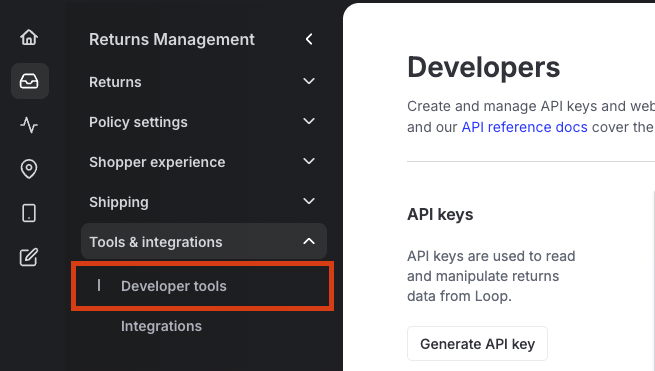
Click Generate API Key.
When selecting scopes, check the boxes for both Orders and Return.
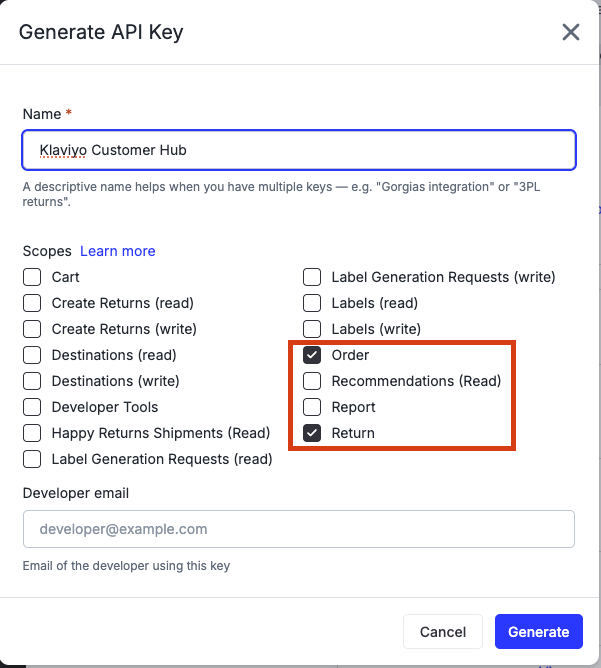
Important: Both Orders and Return scopes are required. Without these permissions, the integration cannot pass order details to the Loop return flow, and shoppers will see an error when they click Start a Return.
Click Generate.
Copy the generated API key.
Step 2: Enable the integration in Klaviyo Customer Hub
In Klaviyo's left-hand navigation, select Customer Hub.
Select Extensions.
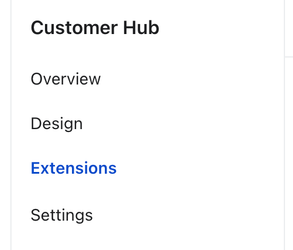
Under Returns, toggle the setting On.
Select Loop as your returns provider.
Paste the API key you copied from Loop into the designated field.
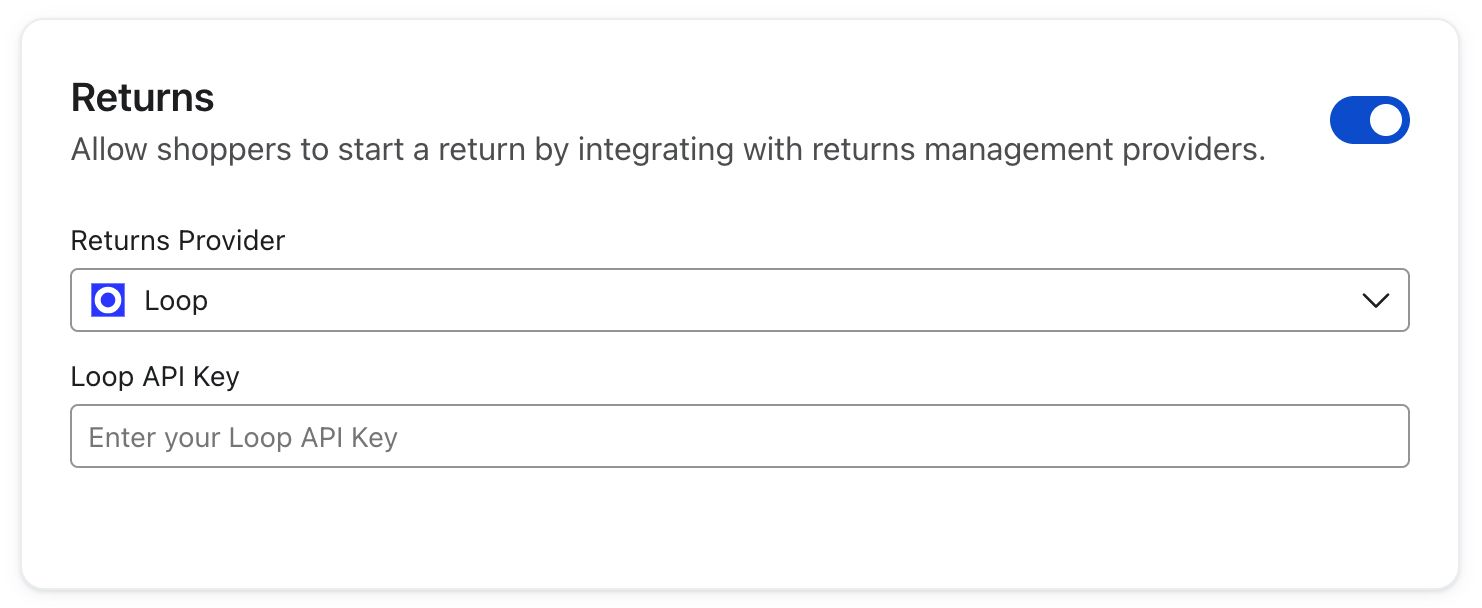
Click Save.
Important: Klaviyo does not validate the API key when you save. If the key is wrong or incomplete, shoppers will see an error when they click Start a Return in Customer Hub. Double-check that you've copied the full key.
Tip: If your Customer Hub is already live on your site, clicking Save publishes this change immediately. If Customer Hub isn't live yet, the integration will take effect when you set Customer Hub to live in the General settings menu.
Tip: After saving, place a test order, fulfill it, then open Customer Hub as a signed-in shopper to verify the Start a Return button appears on the delivered order and the deep link works correctly.
FAQ
Why doesn't the "Start a Return" button appear on an order? The button only appears on orders that have been delivered. If the order is unfulfilled or still in transit, the button won't show. It will also be hidden if the order is otherwise ineligible for return under your Loop policies.
Does this sync return data between Loop and Klaviyo? No. The integration provides a deep link that takes shoppers from Customer Hub into the Loop return workflow. Loop remains the source of truth for return status, tracking, and history. If you want Loop return events to flow into Klaviyo flows for marketing automation, see the separate Klaviyo (email) integration.
Do shoppers have to re-enter their order details to start a return? No. Loop's deep-link API passes the order context securely from Customer Hub into the Loop return workflow, so the shopper goes straight into a personalized flow for that specific order.
How do I turn off the "Start a Return" button? In Klaviyo, go to Customer Hub > Extensions, find the Returns section, toggle it Off, and click Save. The button will be removed from order details in Customer Hub.
Can I use Customer Hub with Loop and other returns providers at the same time? No. Klaviyo Customer Hub supports one returns provider at a time. If you switch providers, only the active provider's portal is shown to shoppers.
Who do I contact for help? For Loop setup issues or unexpected errors, reach out to support@loopreturns.com. For Klaviyo Customer Hub product questions (enabling Customer Hub, where settings live in your Klaviyo account), contact Klaviyo support.
Please reach out to support@loopreturns.com with any additional questions.