Merchant Notifications
OVERVIEW
Merchant Notifications let you receive real-time email alerts and Slack messages when returns hit your Needs Review queue, so your team can act without watching Loop. Configure delivery and event subscriptions on the new Notification Preferences page. In-app notifications are always on; email and Slack are opt-in.
Use the menu on the left to quickly navigate this article.
What it is
Merchant Notifications are real-time alerts that Loop sends to your team when something needs attention on a return or when Loop ships an update worth knowing about. You choose what to subscribe to (all returns that need manual input, specific return events, or Loop product announcements), and where to send the alerts (email, Slack, or both). Configuration lives in one place: Notification Preferences.
This allows users to keep tabs on Loop without needing to be in the admin day in and day out.
In-app notifications appear in the bell menu and the Notifications page and are always on. Email and Slack notifications are opt-in.
How it works
Notification Preferences is organized into three tabs:
Return events — subscribe to events tied to returns landing in your Needs Review queue (e.g. Refund Errors, Manual Review flags, Out of Stock).
Loop announcements — opt in to product updates from the Loop team.
Delivery channels — configure where Loop should send notifications: an email recipient list and a Slack channel.
Setup
There are three ways to reach Notification Preferences:
Click the Notify Me button on the returns dashboard.
Click Preferences from the View All Notifications page.
Click on the bell icon in the top right of the admin, then click on the gear icon in the top right of the dropdown.
Follow the steps below to set up Merchant Notifications.
Step 1: Set up email delivery
On the Delivery channels tab, find the Email section.
Click + New list to create a recipient list (or click Manage lists to use an existing list).
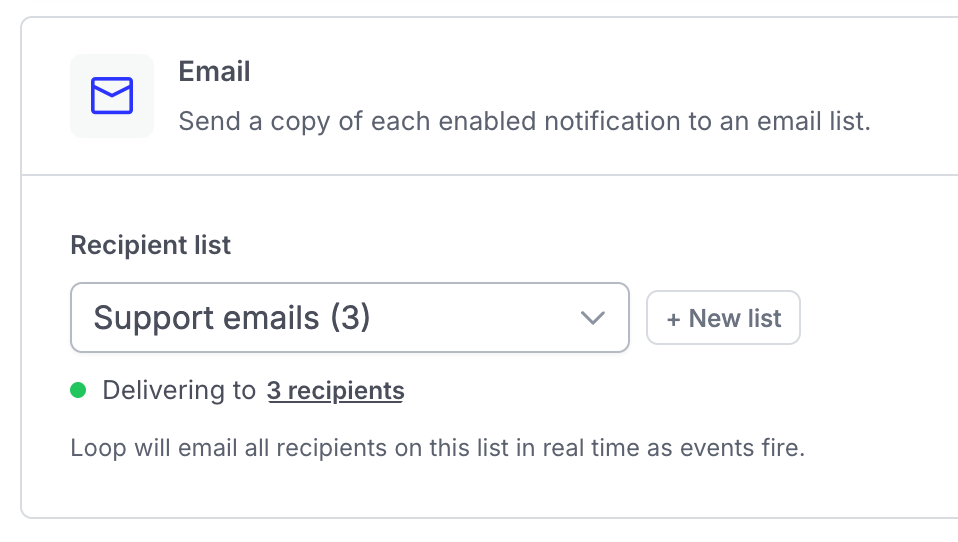
Name the list (e.g. "Support Emails"), set the value type to Email, and add an optional description.
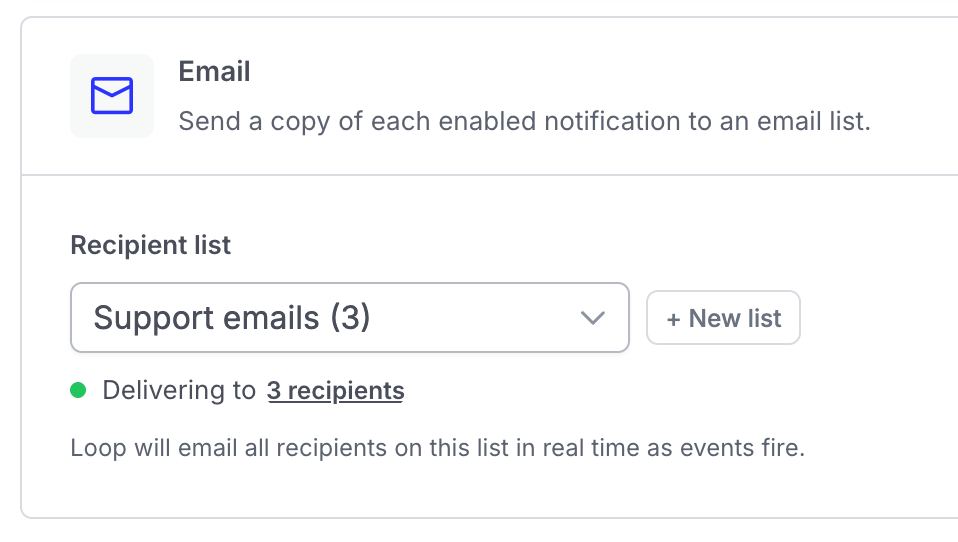
Add recipients individually, in bulk, or via CSV import.
Return to Notification Preferences and select your new list from the Recipient list dropdown.
Tip: Point your list at a distribution group or your support inbox (e.g.
support@yourbrand.com) rather than individual addresses. It's much easier to maintain as your team changes. This approach can also automatically create tickets in systems like Gorgias or Zendesk.
Step 2: Set up Slack delivery
In the Slack section of Delivery channels, click Connect Slack Workspace. This opens the Integrations page.

Toggle the Slack integration on. You'll be redirected to Slack to authorize the connection.
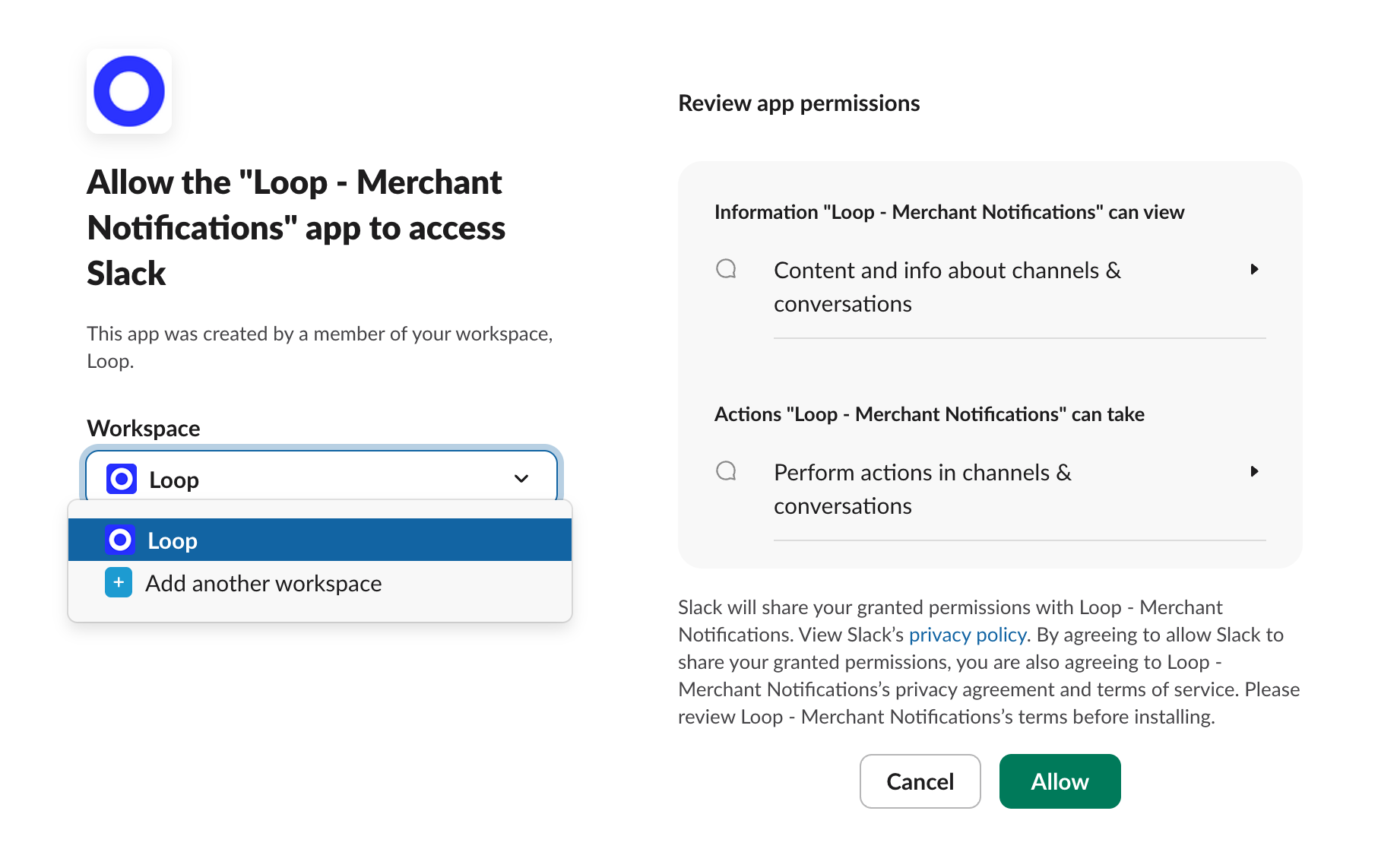
Important: Make sure you're connecting to the correct Slack workspace before authorizing.
Once connected, get your Slack channel ID. In Slack, click the channel name to open channel details, scroll to the bottom, and click the channel ID to copy it.
Back in Notification Preferences, paste the channel ID into the Post to channel field and click Save.
Step 3: Subscribe to return events
Open the Return events tab.
Confirm the email list and Slack channel shown at the top of the tab. Every event you enable below will route here.
Toggle Email and/or Slack on for any event you want delivered. To subscribe to every Needs Review reason at once, use the Manual review returns roll-up at the top. To pick specific reasons, expand the roll-up and toggle the individual events.
Toggles save automatically — no Save button required.
Tip: Test your setup by manually flagging a test return for review. The notification should arrive in your inbox and Slack channel within seconds.
Step 4: Subscribe to Loop announcements
Open the Loop announcements tab.
Confirm or change the email list and Slack channel at the top of the tab. Announcements can go to the same destinations as Return events, or to different ones.
Toggle Email and/or Slack for each type of announcement to start receiving Loop product updates.
FAQ
Can I send different return events to different teams? No. All enabled Return events share the email list and Slack channel set at the top of the Return events tab. Different tabs (Return events vs. Loop announcements) can have different destinations.
Can Loop DM me in Slack instead of posting to a channel? Slack delivery is limited to public channels at this time.
Can I customize what the email or Slack message says? Not yet. Notifications use a fixed template that includes the return link, the shopper's email, the return value, and the trigger reason.
Do I need to do anything to turn on in-app notifications? No. In-app notifications appear in the bell menu and on the Notifications page automatically — there's nothing to configure.
What if my Slack channel is deleted or my email list becomes invalid? Loop will stop being able to deliver notifications to that destination. Re-check your Delivery channels tab if you suddenly stop receiving alerts.
What kinds of things will Loop send through Loop announcements? Product updates, new feature launches, and changes to existing functionality from the Loop team. Subscribe if you want to hear about Loop changes without logging into the admin.
Please reach out to support@loopreturns.com with any additional question