
Log in with Shop
OVERVIEW
This article covers Log in with Shop, a feature that lets shoppers sign in to your Loop returns portal using their Shopify Customer Account instead of manually entering an order number and ZIP code. Once signed in, shoppers see a list of their recent orders and active returns and can start or track a return without looking up an order number. This article explains the shopper experience, merchant prerequisites, and answers common questions about Shop login and Shopify Customer Accounts.
Use the menu on the left to quickly navigate this article.
What it is
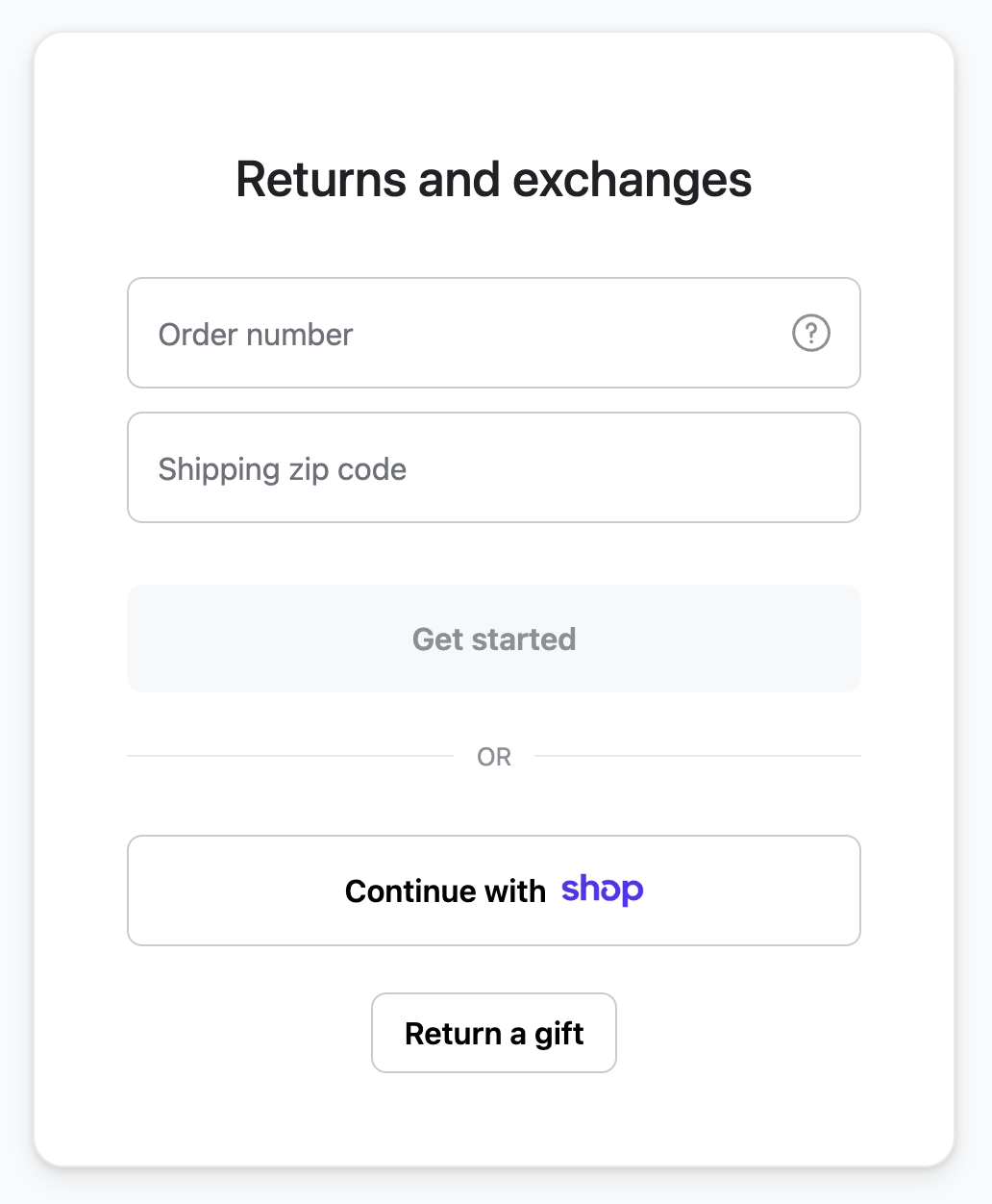
Log in with Shop adds a Continue with shop button to the order lookup page in your Loop returns portal. Shoppers who click it authenticate via Shopify Customer Accounts and are taken to a list of their recent orders and active returns — without entering an order number.
The manual order lookup form (order number + shipping ZIP code) and the Return a gift option remain available alongside it.
Why it matters
The order lookup step is where most shoppers abandon the returns process. Log in with Shop removes that friction:
No order number required — shoppers sign in with Shop and see their eligible orders automatically.
Faster path to return — one tap on Start a return from their order list, no re-entry of order details.
Return visibility — active returns appear alongside orders, so shoppers can track status without contacting support.
Fewer support contacts — reduces lookup-failure tickets from shoppers who can't find their order number.
How it works
When a shopper clicks Continue with shop, Loop initiates a secure sign-in flow with Shopify Customer Accounts. After successful sign-in, the shopper sees a list of their recent Shopify orders, each showing delivery status and available actions.
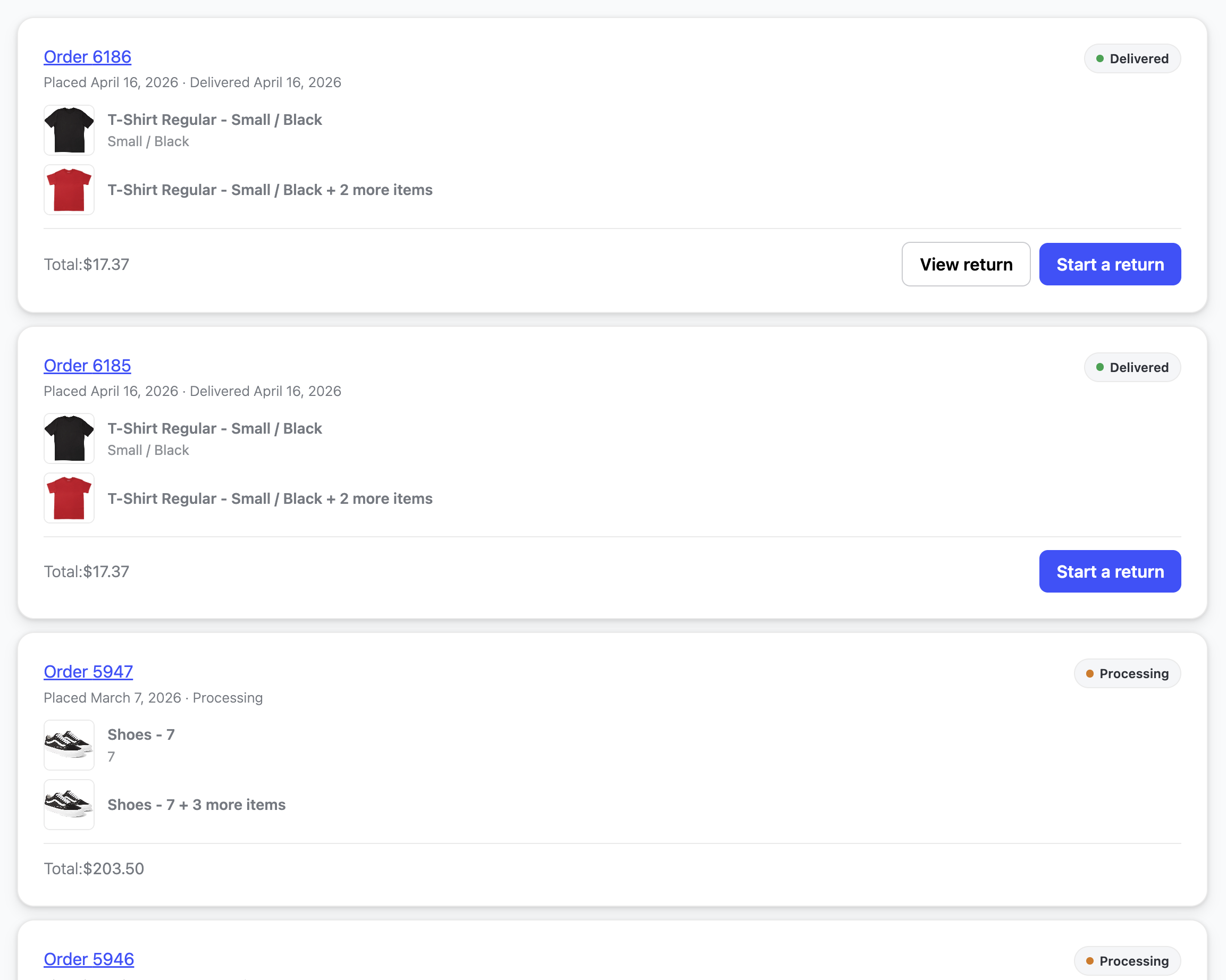
From this view, shoppers can:
Click Start a return on any eligible order
Click View return to check the status of an active return
If sign-in fails or the shopper declines, they are returned to the lookup page to use the manual form.
Note: The signed-in order list shows orders tied to the shopper's Shopify Customer Account. Gift orders and guest checkout orders may not appear here — those shoppers should use the manual order number + ZIP lookup or the Return a gift option.
Requirements
Before Log in with Shop can be enabled for your store:
Your store is on Shopify with Loop Returns installed.
You have enabled Shopify's Customer Accounts experience in your Shopify admin.
Note: There is no additional setup required once the requirements above have been met.
Shopper experience
Starting a return
On the returns portal order lookup page, shoppers see a Continue with shop button alongside the manual lookup form. Clicking it opens Shopify's sign-in flow. After completing sign-in, the shopper sees their recent orders and any active returns.
Returning a gift
Shoppers initiating a gift return should use the Return a gift button on the lookup page instead of signing in with Shop. Gift orders may not be associated with the signed-in Shopify account.
FAQ
What if a shopper can't find their order after signing in?
The signed-in view shows orders tied to the shopper's Shopify account. If an order isn't visible — placed as a guest or shipped to a different address — the shopper should use the manual order number + ZIP lookup instead.
Can shoppers still use the manual order lookup?
Yes. The order number + ZIP form remains available on the lookup page. Log in with Shop is an additional option, not a replacement.
Is Log in with Shop available for non-Shopify stores?
No. This feature requires Shopify and Shopify's new Customer Accounts. It is not available on other ecommerce platforms.
Will gift orders appear after signing in?
Not always. Gift orders may not be associated with the signed-in Shopify account. Shoppers initiating a gift return should use the Return a gift button on the lookup page.
Please reach out to support@loopreturns.com with any additional questions.