Braze Integration
OVERVIEW
Braze is an email and SMS marketing platform you can connect directly to Loop Returns. This article covers how to connect your Braze account, how return activity flows into Braze as custom events, how to map specific events to Braze campaigns and canvases, and how to test your setup before going live.
Use the menu on the left to quickly navigate this article.
What it is
The Braze integration connects your Loop return events directly to your Braze account. Once connected, every shopper's Braze profile is automatically kept up to date with their return activity, and you can optionally trigger a specific Braze Campaign or Canvas whenever a particular return event happens, such as a return being created, an exchange shipping, or a refund completing.
Why it matters
Sends personalized, return-specific messages in Braze without building lists manually
Updates the shopper's Braze profile automatically for every return event, whether or not it's mapped
Makes unmapped return events available in Braze as custom events, usable as triggers for automations you build yourself
Lets you test any mapping with a real send before it goes live to shoppers
Included with your Loop plan at no additional cost
Use Cases
This integration is for merchants already using Braze for lifecycle marketing who want to react to return activity. For example, triggering a "we're sorry to see this return" Canvas the moment a return is created, or a "your exchange has shipped" Campaign when tracking is generated.
It's also for merchants who want more control than the mapping table offers. Every return event lands in Braze as a custom event regardless of mapping, so you can build your own Canvas around any of the 28 supported events, with your own delay logic, audience filters, and branching, instead of using Loop's built-in Campaign/Canvas trigger.
How it works
The integration does two separate things.
Baseline tracking. Every return event, including return created, label generated, refund completed, and 25 others, updates the shopper's Braze profile and adds a Custom Event to their activity history in Braze, whether or not it's mapped. A custom event is Braze's term for a named, timestamped event with a set of properties attached. For example, a "Return Created" event carries the order name, return status, tracking number, return reason, and returned product info. This happens automatically once Braze is connected. No mapping is required.
Mapped events. If a specific event is mapped to a Campaign or Canvas in Loop, Loop also tells Braze to send that exact message immediately. No building is required on the Braze side.
Every Loop event name follows the pattern loop_<event_name>. For example, "Return Created" becomes loop_return_created. Every event Loop has sent is listed in Braze's Custom Events catalog (under Data Settings), alongside events from other sources like website tracking.
Tip: Because these are standard Braze custom events, they aren't limited to the Campaign/Canvas mapping table. A new Canvas can use Custom Event as its entry trigger (search for any
loop_event name) to apply custom delay logic, audience filters, and branching to return activity, whether or not it's one of the events in Loop's mapping table.
Note: Braze is rolled out to accounts individually. If you don't see Braze under Settings > Integrations, reach out to your account team to request access.
Setup
Navigate to Settings > Integrations > Braze and click Connect.
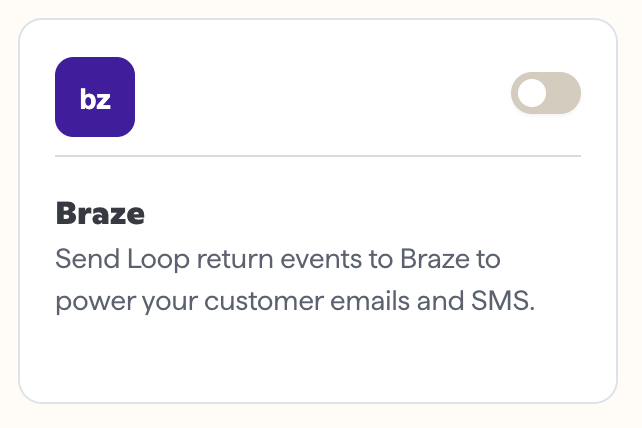
Enter your Braze REST API Key and select your account's Region, then click Save.
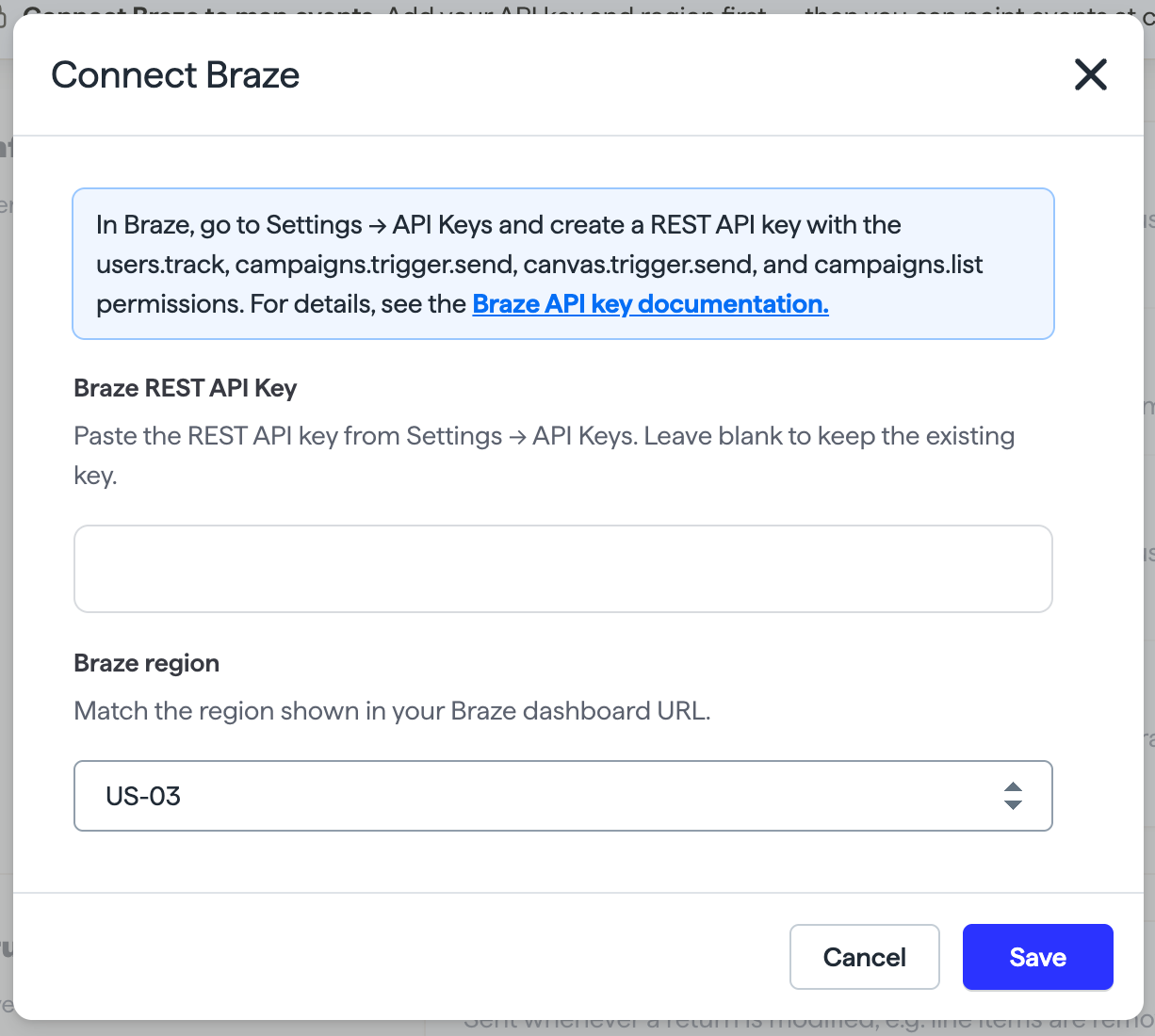
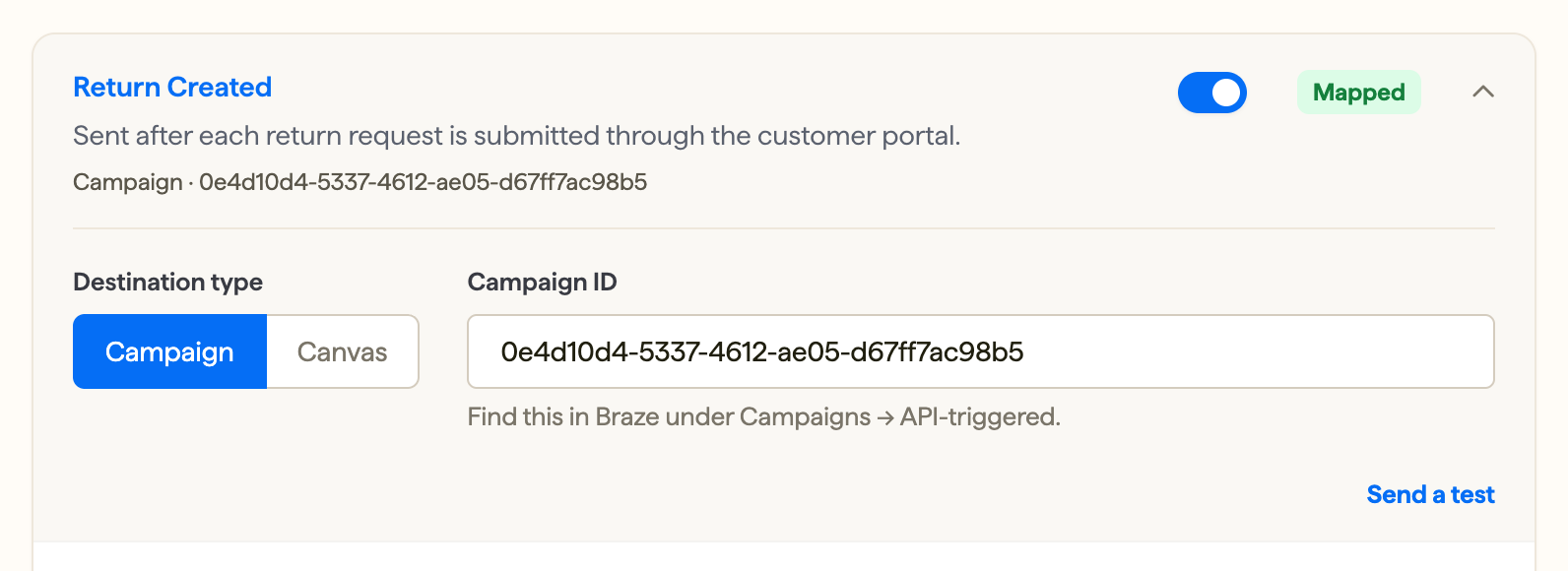
In the event mapping table, expand the return event you want to trigger a message for, choose Campaign or Canvas, paste in the ID from Braze, and turn the toggle on.
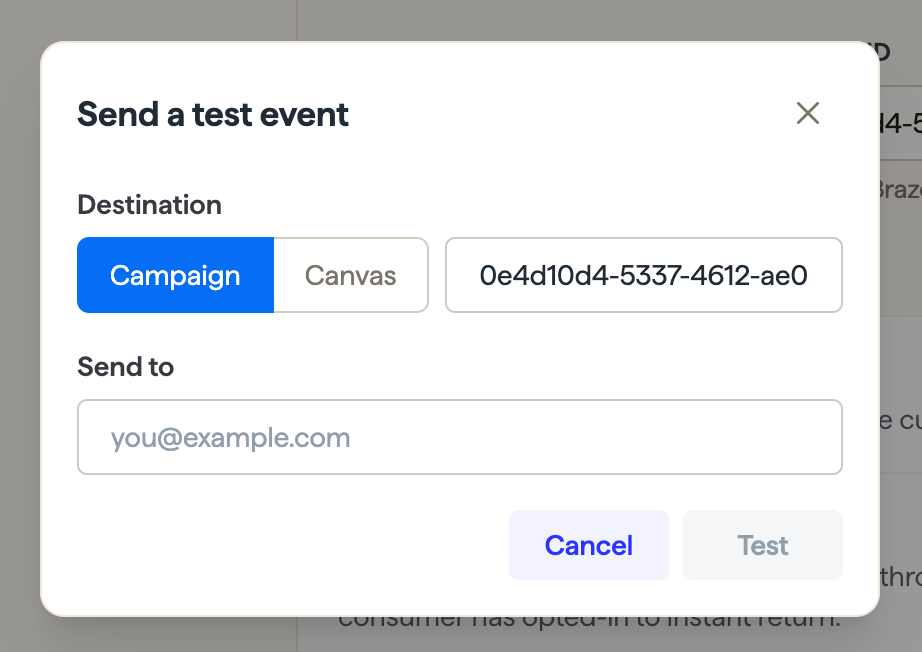
Click Send a test event and enter an email address to confirm the mapping works before relying on it live.
Important: Your Braze REST API key needs these scopes, or connecting and sending will fail:
users.track,campaigns.trigger.send,canvas.trigger.send,campaigns.list,campaigns.details,canvas.details.
Tip: Always send a test event after mapping a new Campaign or Canvas. It fires a real message to the email address provided, confirming the content is correct before shoppers see it.
Admin experience
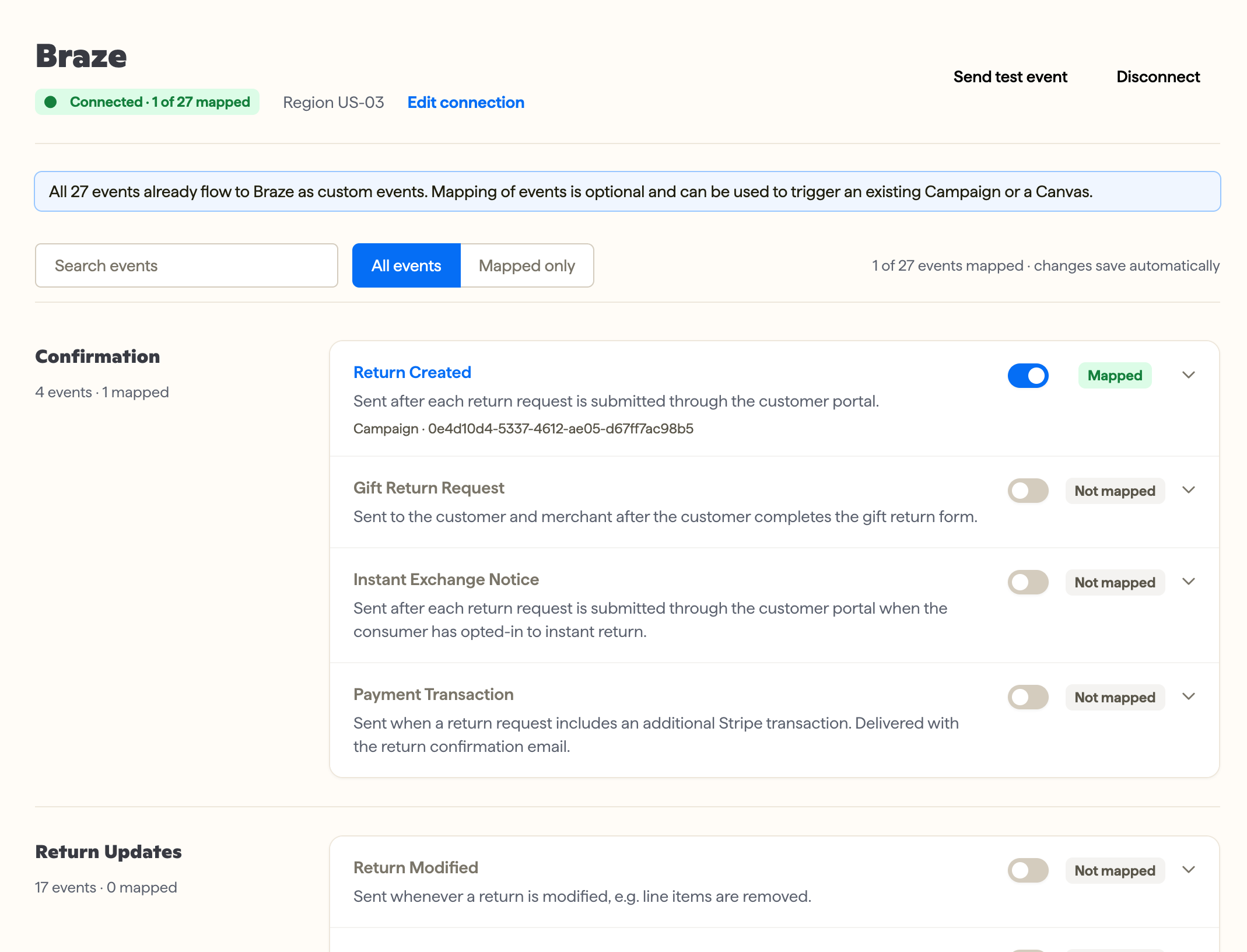
Once connected, the Integrations page shows your connection status and how many of your available return events are currently mapped. Search and filter the event table to quickly find a specific event, or filter to only your mapped events.
Plan information
The Braze integration is included with all Loop plans at no additional cost.
FAQ
Do I need an existing Braze account?
Yes. An active Braze account and a REST API key with the scopes listed in the Setup section above are required.
What's a Loop "custom event," and where do I find it in Braze?
It's Braze's term for the timestamped activity records Loop sends for every return event. You'll find them on a shopper's profile in Braze, and listed by name (e.g. loop_return_created) in Braze's Custom Events catalog.
Can I build my own Braze automation using return data I haven't mapped in Loop?
Yes. Every return event is available in Braze as a custom event, whether or not it's mapped to a Campaign or Canvas. Any of them can be used as a Canvas entry trigger or audience filter to build custom logic.
What data comes with each event?
It depends on the event. Most include the order name, return status, tracking number, return reason, and the returned product's name, image, and SKU. These are all available to reference in Braze message templates.
What happens if I don't map a particular event?
The shopper's Braze profile is still updated with that activity in the background. There won't be a dedicated Campaign or Canvas trigger for it unless it's mapped, though a custom Canvas can still be built off the custom event, as described in How it works.
Which region should I select when connecting?
Choose the region matching your Braze account's REST endpoint cluster, found in your Braze dashboard's developer/API settings.
Can I test a mapping before it goes live?
Yes. Use Send a test event on any mapped event to fire a real test message to a provided email address.
What happens if I disconnect Braze?
Your event mappings are preserved but stop sending. Reconnecting restores them.