
Radial Integration
OVERVIEW
This article explains the Radial two-way integration, which keeps return merchandise authorizations (RMAs) in sync between Loop and Radial's warehouse management system using webhooks and API calls. It covers how the integration works, the two paths available to connect Loop to Radial (a direct connection managed by Radial, and Pipe17), and frequently asked questions. Returns initiated in Loop create matching RMAs in Radial; once Radial processes the return, line-item-level details — condition, missing items, and more — flow back to Loop in real time.
Use the menu on the left to quickly navigate this article.
How it works
The integration between Radial and Loop is a two-way integration owned and maintained by Radial. Radial maintains a direct connection to Loop, which means no developer work is required on the merchant's end to connect their Loop instance to Radial. The integration relies on webhooks and API calls to communicate return merchandise authorization (RMA) information between the systems. Once a return is received and processed at Radial's facilities, the RMA is updated in Loop in real time.
The integration is responsible for performing two primary actions:
Creating returns within Radial’s order/warehouse management system when a return is initiated through Loop.
Processing a return within Loop based on items received by Radial.
When a return arrives at Radial's warehouse, Radial sends Loop line-item level information about the returned items. Loop then triggers a return processed event for the items.
The integration functions as follows:
The shopper requests a RMA using the merchant's Shopper Return Portal.
Loop creates the RMA and return shipping label for the customer.
Using Loop's webhooks, Radial receives the RMA details and creates an RMA corresponding with the order in their system.
Radial receives the package and looks up the RMA in their system.
Radial processes the returned items against the RMA in their system, capturing the condition of items, any missing items, and other line-item level details.
The RMA is updated accordingly in Loop.
Note: Merchants can connect Loop to Radial through two paths: a direct connection managed by Radial (contact your Radial Client Account Manager to start) or Pipe17 (a self-service connection via the Pipe17 platform). The "Connecting via Pipe17" section below covers the Pipe17 path.
Connecting via Pipe17
Pipe17 is an integration platform that can connect Loop to Radial as an alternative to Radial's direct connection. The setup is fully self-service and takes a few minutes once you have admin access to both your Loop and Pipe17 accounts.
Requirements
Before getting started:
You must be logged into your Loop admin with permissions to manage API settings
You must have access to your Pipe17 account with permissions to add integrations
Setup
Follow the steps below to connect Loop to Pipe17:
In Pipe17:
Navigate to the Integrations tab on the left.
Click Add Integration in the upper-right corner.
Search for Loop.
Click Add on the Loop integration card.
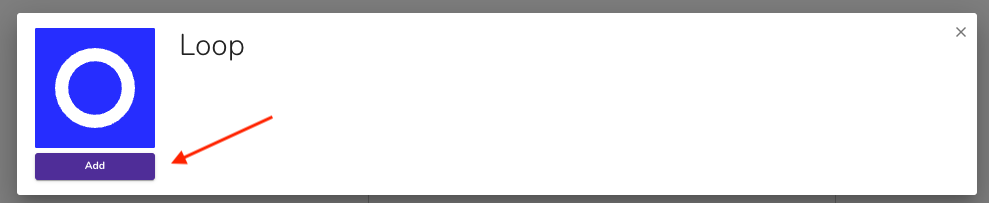
On the next screen, Pipe17 will prompt you to enter your Loop API key. Leave this tab open and switch to your Loop admin.
In Loop:
Navigate to Returns Management > Tools & integrations > Developer tools.
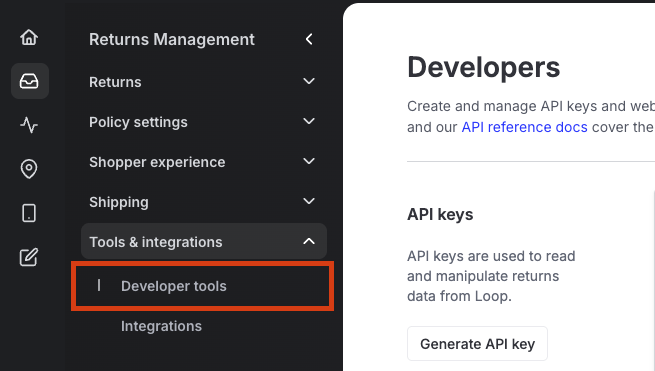
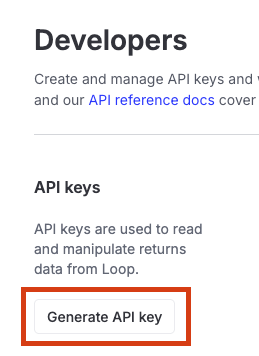
Under the API Key section, click Generate API Key.
Assign permissions by checking the boxes for Cart, Orders, Return, and Report.
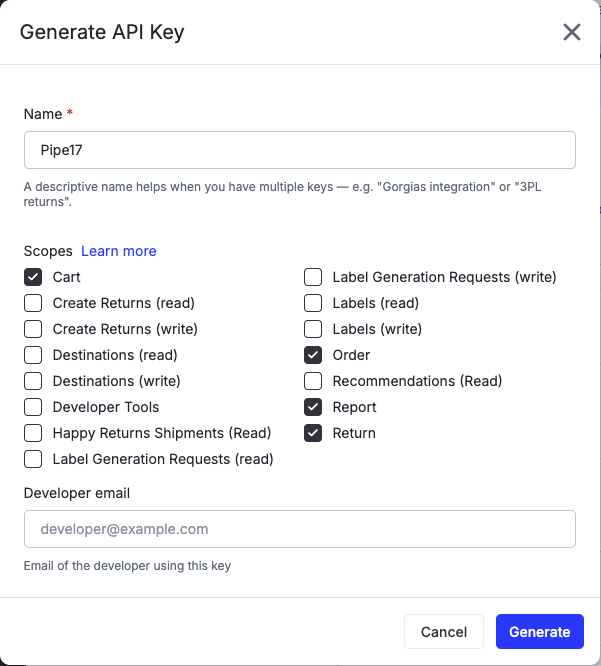
Click Generate.
Copy the newly generated API key from the bottom of the Developers menu.
Important: Treat your API key like a password. Don't share it outside of your Pipe17 setup process.
Back in Pipe17:
Paste the copied API key into the designated field.
Click Connect.
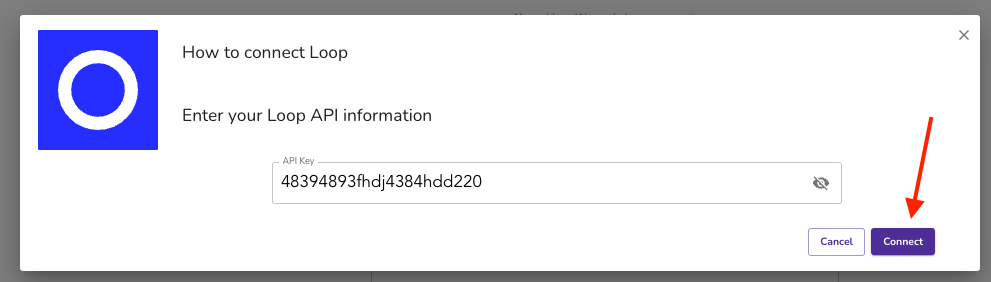
You're now connected. The next section covers how to configure the two connection flows Pipe17 supports.
Configuring connection flows
In Pipe17, click the Integrations tab on the left and open the Loop connector.
Make sure the Settings tab in the middle is selected.
Under Integration Specific Settings, you'll see two toggles:
Pull returns from Loop — turn this on when you're ready for Pipe17 to begin importing your Loop returns.
Pull returns only when there is a matching order available in Pipe17 — turn this on if you only want Pipe17 to pull returns for orders that already exist in Pipe17.
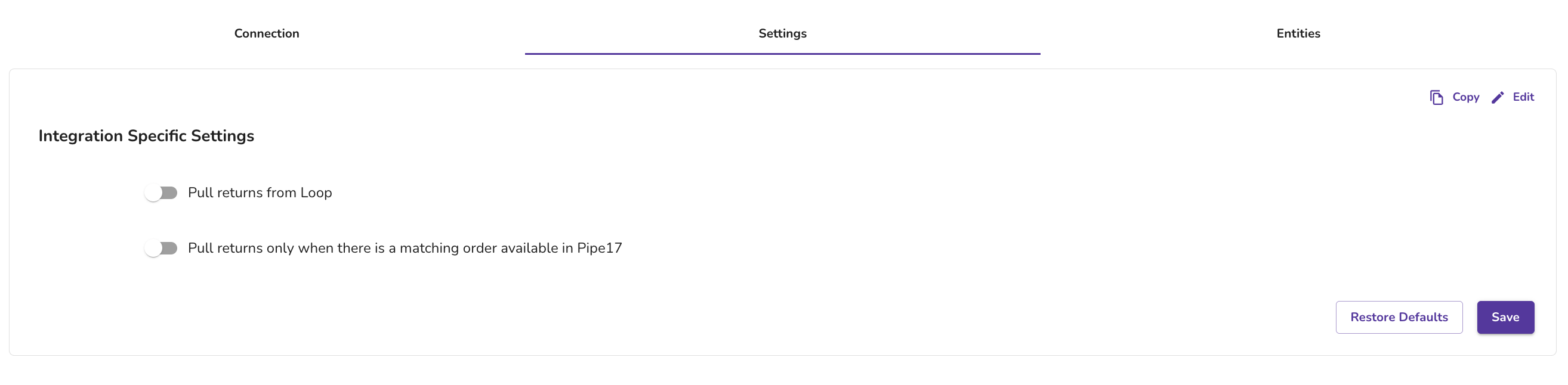
Tip: If you're not sure which combination of toggles makes sense for your workflow, reach out to Pipe17 support before turning them on.
Plan information
To check if this feature is included in your plan, please review the Pricing page on Loop's website.
If you want to add this feature, please contact your Merchant Success Manager to amend your account.
FAQ
Will I need a developer involved to complete this integration? Not at all! Implementation and maintenance is handled by Radial, with collaboration from Loop. However, additional integrations may be needed to support any merchant returns which will not be processed using Loop’s RMA program.
How do I get started? To begin the integration process, please contact your Radial Client Account Manager.
Can I connect Loop to Radial via Pipe17 instead of Radial's direct connection? Yes. Pipe17 offers a self-service connection that uses a Loop API key to link the two systems. See the Connecting via Pipe17 section above for step-by-step instructions. If you're not sure which path is right for your business, contact your Radial Client Account Manager or support@loopreturns.com.
Please reach out to support@loopreturns.com with any additional questions.