
Torque Integration
OVERVIEW
Torque is a comprehensive third-party logistics platform that streamlines warehouse operations, order fulfillment, and inventory management for ecommerce businesses. Loop’s 2-way integration with Torque allows merchants to:
Automatically create an RMA in Torque when a return is submitted in Loop.
Automatically process, flag, or close the return in Loop when the item is processed in Torque.
Use the menu on the left to quickly navigate this article.
This integration is built by Synks and maintained by Loop. For any questions about setup or troubleshooting, reach out to support@loopreturns.com.
How it works
Once connected, Loop will begin creating returns in Torque any time a return is submitted in Loop by a customer. When the return is updated in Torque, that return will either process, flag, or close in Loop automatically.
A customer submits a return request in Loop.
This return, known as an RMA, is sent from Loop to Torque.
The warehouse operator scans the returned item and updates the return status in Torque (completed, completed with discrepancies, etc.). This update is then sent back to Loop.
Loop notifies Shopify to either issue a refund or create a new exchange order, based on the customer’s preference.
If any discrepancies occur, the integration flags them in Loop and holds the return for manual review on the Loop dashboard.
Additional details
Canceled returns in Torque must be manually processed or canceled in Loop.
Depending on your setup at Torque, extra development might be needed from the Torque team to accommodate for this flow.
Return reasons in Loop must be mapped to Torque's return reason codes in the Settings tab during onboarding.
Important: Each product SKU must be unique in Torque. To avoid issues, product SKUs should match across Loop, Torque, and Shopify.
Setup
To set up this integration, you will need an API key from Loop and your Torque API key, and then input them in the Synks portal to connect. To get access to the Synks portal, please reach out to your Merchant Success Manager, Onboarding Specialist, or support@loopreturns.com.
Note: For the Torque API Key, please reach out to your account manager at Torque.
In the Loop Admin, navigate to Returns management > Tools & integrations > Developer tools.
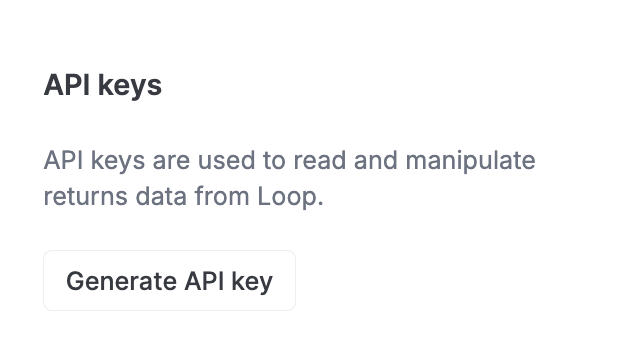
Under API keys, click Generate API key
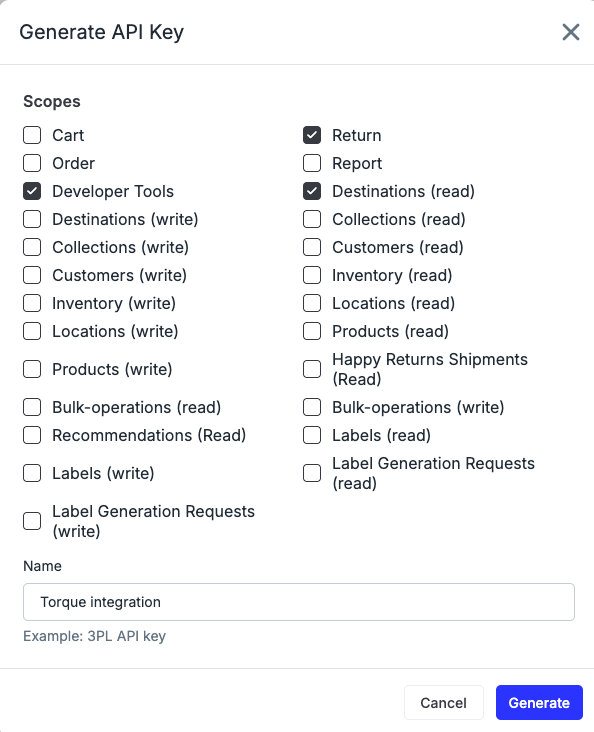
Select the scopes for: Return, Developer Tools, & Destinations (read) and name the API key “Torque integration,” This name is for your own internal labeling convenience. Click Generate to create a Loop API key.
Note: you’ll need to copy & paste this API key in a later step
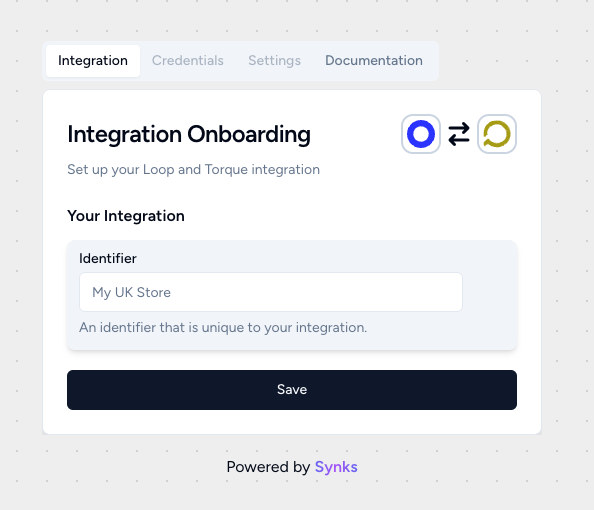
Open the onboarding link provided by the Loop team.
Under the Integration tab, set an identifier for this integration. Example: “UK STORE”. Hit Save.
Navigate to the Credentials tab then paste the copied API key into the API Key field under the Loop Setup along with your API Key for Torque.

Navigate to the Settings tab and:
Input all the necessary info from your Torque account such as:
Client ID
Client Group
Site ID
Config ID
Owner ID
Pallet Config
You can also definite Torque conditions that you'd like to flag at Loop. Make sure these are comma-separated. (e.g., bad,broken)
When mapping your return reasons, you can either use the Loop child reasons or the parent reasons. Children reasons will always take priority.
Press the Save button, and that’s it!
FAQ
How long does this integration take to set up? This should take only 2 -5 minutes to set up.
Do I need a developer to complete set up? No, this can be done by any user with Loop Admin & Torque credentials.
Who manages this integration? This integration was built by Synks. You can direct any feedback or support requests directly to the Loop team at support@loopreturns.com.
Is there an additional cost to use this integration? No, any merchant with access to integrations in Loop can use the Torque integration at no additional cost.
Please contact support@loopreturns.com for any additional questions on this integration.