
Klaviyo Helpdesk Integration
OVERVIEW
Loop's integration with Klaviyo Helpdesk lets your support agents view return status, initiate returns, and share return links with customers without ever leaving the Klaviyo ticket view. This article covers how to generate a Loop API key, connect Loop Returns as your returns provider in Klaviyo, and what the integration looks like for your agents day-to-day.
Use the menu on the left to quickly navigate this article.
What it is
Klaviyo Helpdesk is Klaviyo's support agent product — the inbox where your team responds to customer tickets. Loop's integration adds return information and actions directly to the order card in each ticket, so agents don't have to switch between Klaviyo and the Loop admin to help a customer with a return.
Note: This integration is separate from Loop's integration with Klaviyo Customer Hub (Klaviyo's customer-facing self-service portal) and from Loop's email/SMS integration with Klaviyo Marketing. You can connect Loop to any combination of these products.
Why it matters
Agents resolve return-related tickets faster because order and return context lives inside the ticket.
Agents can start a return for a customer without leaving the Klaviyo Helpdesk inbox.
Customers get a deep link that drops them directly into the Loop returns portal for the right order, removing a common friction point in return flows.
How it works
Once connected, every order card in a Klaviyo Helpdesk ticket includes Loop return information. Agents can see the status of any existing return tied to that order and, when a return doesn't yet exist and the order is eligible, start one directly from the sidebar.
Note: Loop reads return eligibility from the same policy rules used everywhere else in Loop (return window, eligible items, etc.). If an order can't be returned in the Loop portal, the agent won't see "Initiate Return" in Klaviyo either.
Setup
Before you begin, you'll need:
An active Loop Returns account
A Klaviyo account with Helpdesk enabled
Klaviyo user permissions of Owner, Admin, or Manager (required to access integration settings)
Follow the steps below to connect Loop Returns to Klaviyo Helpdesk:
Step 1: Generate your Loop API key
Log in to your Loop admin.
Navigate to Returns Management > Tools & integrations > Developer tools.
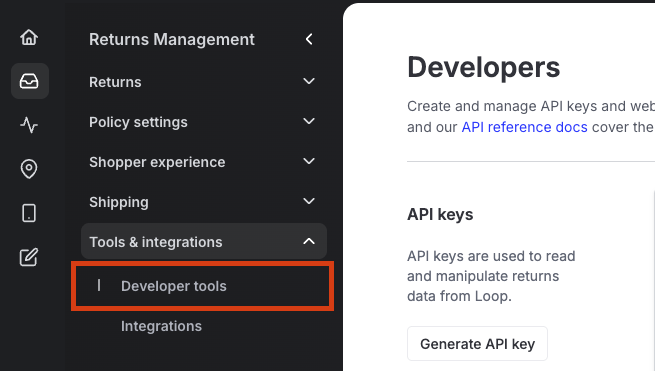
Click Generate API Key.
When selecting scopes for this key, check the boxes for both Orders and Returns.
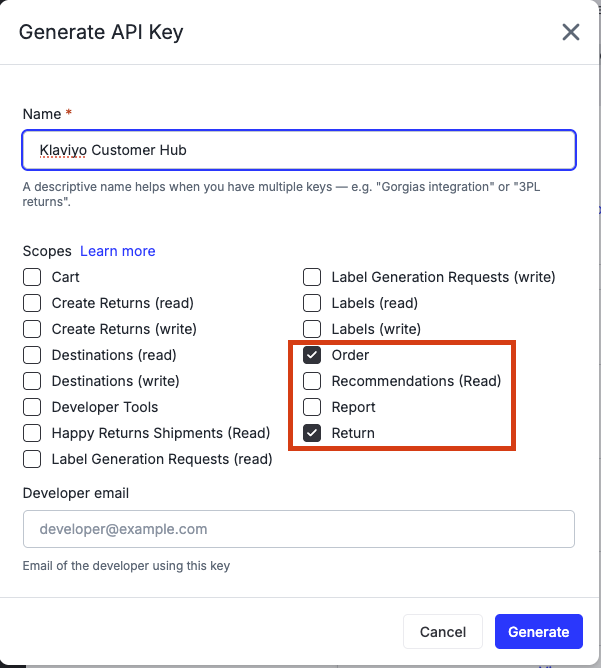
Important: Without both Orders and Returns scopes, the integration cannot look up order details or initiate returns. Agents will see errors later if either scope is missing.
Copy the generated API key.
Tip: Paste the key into the Klaviyo setup screen immediately. Loop will not show the full key again after you navigate away from this page.
Step 2: Enable the integration in Klaviyo
Log in to Klaviyo.
Navigate to Customer Hub > Extension.
Set Loop Returns as your returns provider.
Toggle Enable Loop Returns to On.
Paste your Loop API key into the designated field.
Important: Double-check the key before saving. Klaviyo does not validate the API key on save, so an incorrect or partial key will only show up as errors for your agents once they try to use the integration in a ticket.
Click Save.
Admin and portal experience
After setup, the Loop section appears on the order card inside every Klaviyo Helpdesk ticket. Agents will see two main pieces:
Current return status — for any existing return tied to the order, the status displays as one of:
Open — the customer has started a return but hasn't shipped yet
Review — the return is awaiting manual review (e.g. fraud, custom rules)
Closed — the return has been completed
Cancelled — the return was cancelled
If the return has shipped, the agent also sees the carrier and a clickable tracking number.
Initiate return — if the order is eligible and there's no active return already open, the agent can click Initiate Return and choose how to share the return portal with the customer:
Copy Link — generates a deep link that logs the customer directly into the Loop returns portal for that specific order. The agent can paste this link into the chat or email reply.
Plan information
To check if this feature is included in your plan, please review the Pricing page on Loop's website.
If you want to add this feature, please contact your Merchant Success Manager to amend your account.
FAQ
Why can't I see the "Initiate Return" button on a ticket? The button only appears when (1) the order is eligible for return per your Loop return policies (e.g., it's still within the return window and contains returnable items) and (2) there's no active return already open for that order. If either condition fails, the button is hidden.
Can an agent create a return label for a customer manually from inside Klaviyo? Not at this time. The integration generates a deep link (or QR code) that takes the customer into the Loop returns portal to select items and confirm the return on their own. Agents can't complete the item selection step on behalf of the customer from inside Helpdesk.
How is this different from Loop's integration with Klaviyo Customer Hub? Klaviyo Customer Hub is the customer-facing self-service portal where shoppers manage their own returns. Klaviyo Helpdesk is the agent-facing inbox. Both are configured under Customer Hub > Extension in Klaviyo, but they surface Loop information in different places — Customer Hub shows it to your customers, Helpdesk shows it to your agents.
Please reach out to support@loopreturns.com with any additional questions.