
Loop for Shopify POS: In-Store Returns
OVERVIEW
Loop for Shopify POS: In-Store Returns is a Shopify POS extension that lets store associates start and complete a full Loop return without leaving the Shopify POS app. This article covers what the extension is, how it works, how to set it up, and answers common questions about in-store returns in Shopify POS.
Note: Loop for Shopify POS is made up of two separate extensions that you can adopt independently. This article covers In-Store Returns, where associates handle a return from start to finish. If you also want shoppers to start a return online and drop it off in store, see Loop for Shopify POS: Return Online, Drop Off In-Store.
Use the menu on the left to quickly navigate this article.
What it is
In-Store Returns is a native extension inside the Shopify POS app. Associates look up an order the way they normally would in Shopify POS, tap the Loop in-store returns button on the order, and complete the return in Loop's return flow. This works for shoppers who have not started a return online.
The extension has no home screen tile. It appears as a button on the order screen.
Note: Loop for Shopify POS is the recommended way for Shopify merchants to handle in-store returns. If you are using the Loop POS app, see Loop Point of Sale. Loop POS is our legacy solution, and we recommend moving to the Shopify POS extensions.
Why it matters
Handling returns in the same app associates already use all day makes in-store returns faster and easier to train:
No app switching. Associates stay in Shopify POS for the entire return.
No extra credentials. Associates use their existing Shopify POS login, so there is no separate Loop account to create, share, or reset.
Works on the hardware you already have. Compatible with iOS, Android, and Shopify GO devices, plus any card readers and barcode scanners you already use.
All return activity in one place. Returns processed in store appear in Loop admin like every other return.
Your return rules still apply. Eligibility is based on your Loop return policy, and associates can see which items are eligible and ineligible.
How it works
An associate looks up the shopper's order using the standard Shopify POS order search. Orders can be searched by customer as well as by order.
On the order screen, the associate taps Loop in-store returns.
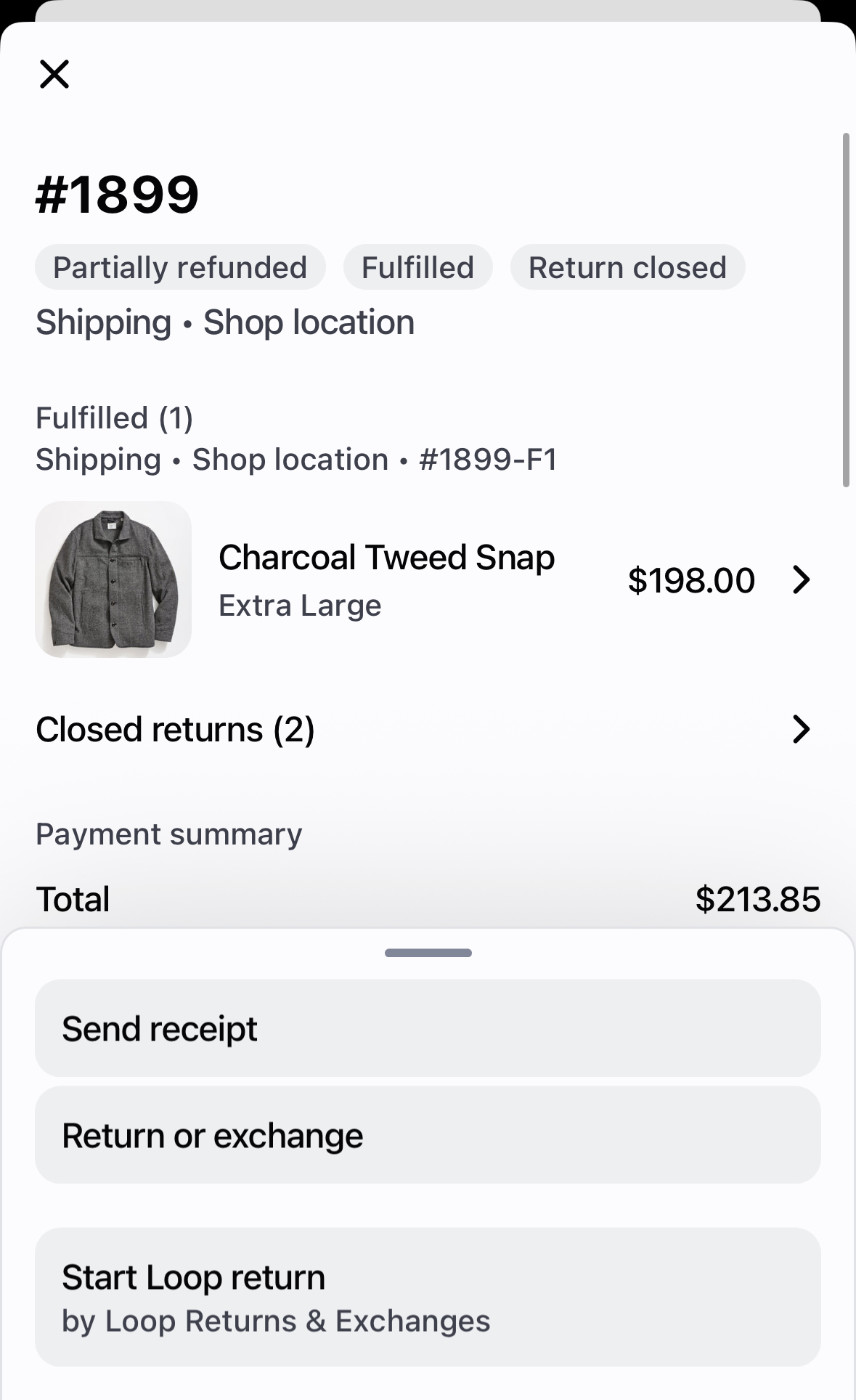
The associate selects the items the shopper is returning and a return reason for each.
The associate chooses the return outcome and completes the return. If you've enabled in-store exchanges, associates can process an exchange here.
The return is created in Loop and processes immediately. It appears in Loop admin alongside your other returns. If the return is for an exchange, the exchange order is created immediately.
Return policy exceptions
Associates can make exceptions for items that aren't eligible under your return policy by adding them to the allowlist with a reason. Allowlisting can be turned on or off for your store as a whole in the Loop admin, but it can't be turned on for individual associates.
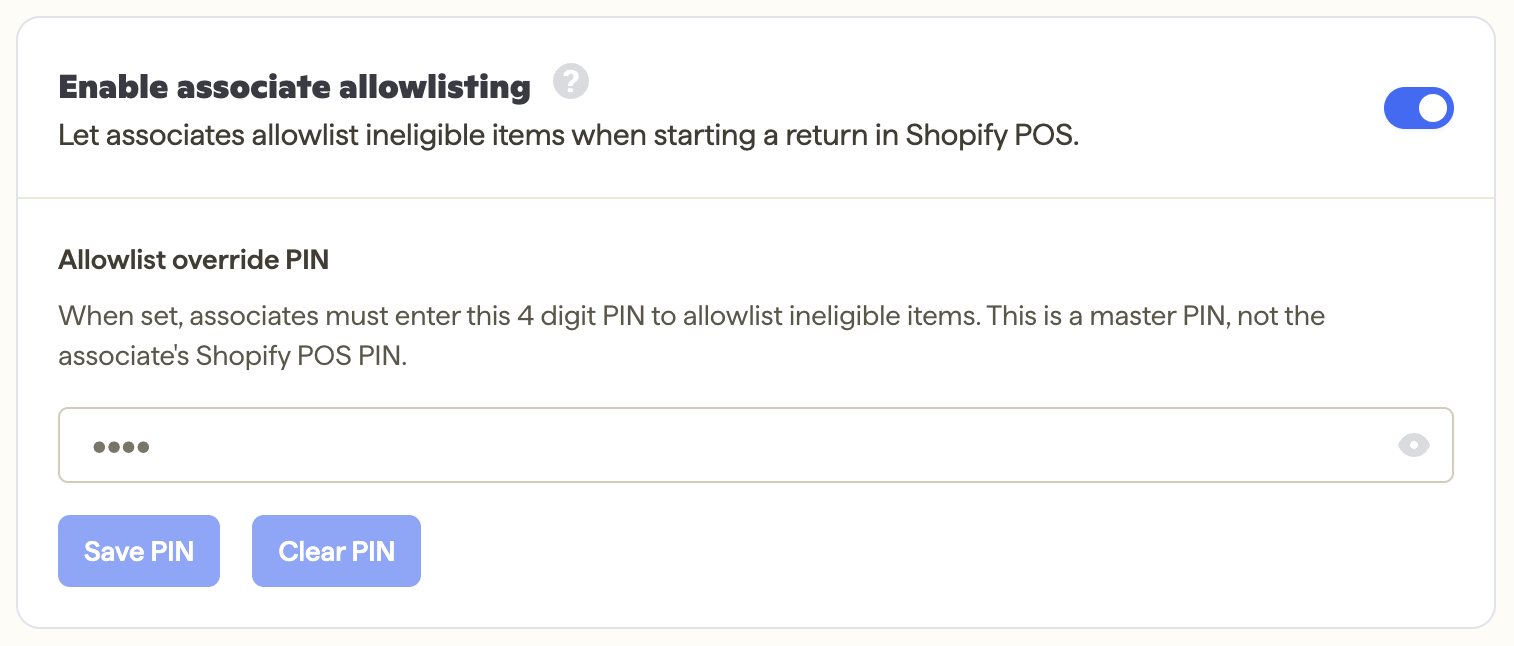
To limit who can make exceptions, set a PIN in the Loop admin. If the PIN is left blank, any associate can allowlist an item.
Known limitations
Fees and bonuses aren't applied to in-store returns. Drop-off fees can still be configured through workflows for online returns.
Returns that depend on user input in a workflow aren't supported. These workflow inputs don't block items from being returned, so associates can review the item in person instead.
Warranty-only items show as unavailable. They can be returned by adding them to the allowlist with the reason "warranty".
Native Shopify exchanges aren't supported with this extension.
Setup
Setup has two parts: turning the extension on in Loop admin, then turning it on in Shopify admin. Both are required.
Step 1: Turn it on in Loop admin
In Loop admin, navigate to the Point of Sale tile in the sidebar, then to the Loop for Shopify settings page.
Turn on the Enable Loop for Shopify POS toggle.

Optional: Further configure how Loop for Shopify POS should work on the General POS settings page.
Step 2: Turn it on in Shopify admin
In your Shopify admin, navigate to the Point of Sale sales channel in the left sidebar, then click Settings.
Click POS apps, then click Apps in the top bar.
Slide the Loop in-store returns toggle on.
Important: The extension must be turned on from Shopify admin. It can't be turned on from inside the Shopify POS app.
Note: Unlike the drop-off extension, In-Store Returns has no tile on the POS home screen. Not seeing a tile is expected.
Close and fully reopen the Shopify POS app so it pulls in the latest changes.
Step 3: Check staff permissions
Loop doesn't control who can use the extension, Shopify does. If an associate sees a message that they don't have the correct permissions, in your Shopify admin go to Settings > Users and permissions > [staff member] > Apps and make sure Loop Returns & Exchanges is enabled. You can also enable it for a entire role, which applies to everyone assigned that role.
Step 4: Confirm it's working
In the Shopify POS app, look up a returnable order and confirm the Loop in-store returns button appears on the order screen.
Tip: Process a test return before your first live shopper so associates have seen the flow once.
The in-store return flow
This demo shows the in-store return flow end to end in Shopify POS, from looking up an order to completing the return.
Note: Returns processed through the extension appear in the Loop admin alongside your other return activity, so there's no separate view or report to check.
Plan information
To check if this feature is included in your plan, please review the Pricing page on Loop's website.
If you want to add this feature, please contact your Merchant Success Manager to amend your account.
FAQ
Do associates need a separate Loop login? No. Associates use their existing Shopify POS credentials.
Which devices are supported? The extension works on iOS, Android, and Shopify GO hardware.
Does the extension deploy to all of our store locations automatically? Yes. Once you turn it on in Shopify admin, it's available on all devices and locations tied to that Shopify store.
Why isn't there a tile on the POS home screen? In-Store Returns appears as a button on the order screen instead of a tile. The drop-off extension is the one that uses a tile.
Can I use this together with the drop-off extension? Yes. The two extensions work independently, so you can use either one or both. Each has its own setup. See Loop for Shopify POS: Return Online, Drop Off In-Store.
Can I use this and other POS return methods, like Shopify's native solution, or Loop's legacy Loop POS app, at the same time? Yes. Turning on this extension does not prevent you from processing returns via other solutions, including Loop's own legacy POS app.
A shopper paid the difference on an exchange, but the Loop admin shows an outstanding balance on the return. Why? This is expected. Loop processes the return, creates the exchange order, and then the shopper pays the difference on the new order. To give the associate and shopper time to finish payment, Loop checks for payment 15 minutes after the order is created and again after 2 hours. Any outstanding balance clears once payment is made.
Can associates limit who makes return policy exceptions? Allowlisting can't be set per associate, but you can set a PIN in Loop admin that associates must enter to allowlist an order.
Please reach out to support@loopreturns.com with any additional questions.