
NZ Post Integration
OVERVIEW
This article explains Loop's NZ Post integration. The integration connects Loop to the NZ Post ParcelLabel and ParcelTrack APIs. When a shopper starts a return in Loop, NZ Post makes a domestic return label. NZ Post then sends tracking events back to Loop as the parcel moves.
Use the menu on the left to quickly navigate this article.
What it is
NZ Post is the national postal and parcel carrier of New Zealand. It operates the CourierPost and Pace delivery brands.
The integration does two things:
Return label generation — NZ Post makes a return label for each approved return. Loop hosts the PDF. The shopper prints the label from the returns portal.
Tracking updates — NZ Post sends each scan event to Loop. The return timeline shows the current status. Automations such as refund on transit use these updates.
You must have an NZ Post business account with access to the ParcelLabel and ParcelTrack APIs.
Note: This integration supports returns inside New Zealand only. It does not make international return labels.
Use cases
Domestic New Zealand returns to your own warehouse or a third-party warehouse
Standard returns with CourierPost, or express returns with Pace
Automatic refunds or exchanges when the parcel reaches a selected status
How it works
The shopper starts a return in Loop.
Loop sends the shipment data to NZ Post. NZ Post makes a consignment and a return label.
Loop hosts the label PDF and shows it to the shopper.
The shopper attaches the label. CourierPost or Pace collects the parcel.
NZ Post sends tracking events to Loop. The events show on the return timeline.
Loop completes the return outcome. The outcome is a refund, an exchange, or store credit, as set by your return policy.
Note: NZ Post makes the label asynchronously. Label generation takes 5 to 10 seconds. Loop waits for the label, then shows it to the shopper. You do not need to do anything. If a shopper cancels a return, Loop cancels the NZ Post tracking subscription and stops the tracking updates.
Setup
What you need from NZ Post
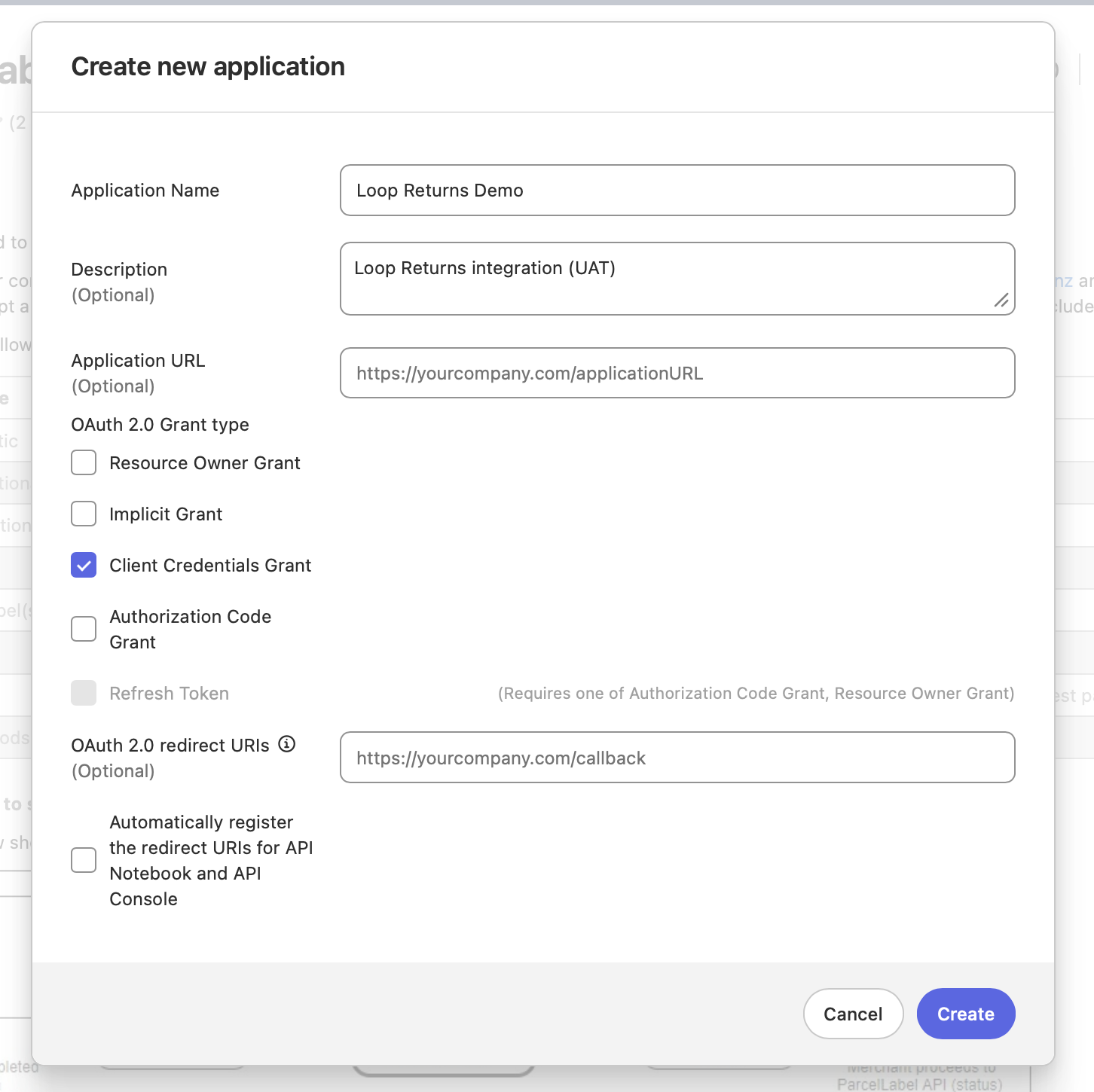
An approved application on the NZ Post Developer Resource Centre. The application must have access to the ParcelLabel and ParcelTrack APIs. If NZ Post has not approved your application, send an email to eshipapi@nzpost.co.nz. You can also speak to your NZ Post account manager.
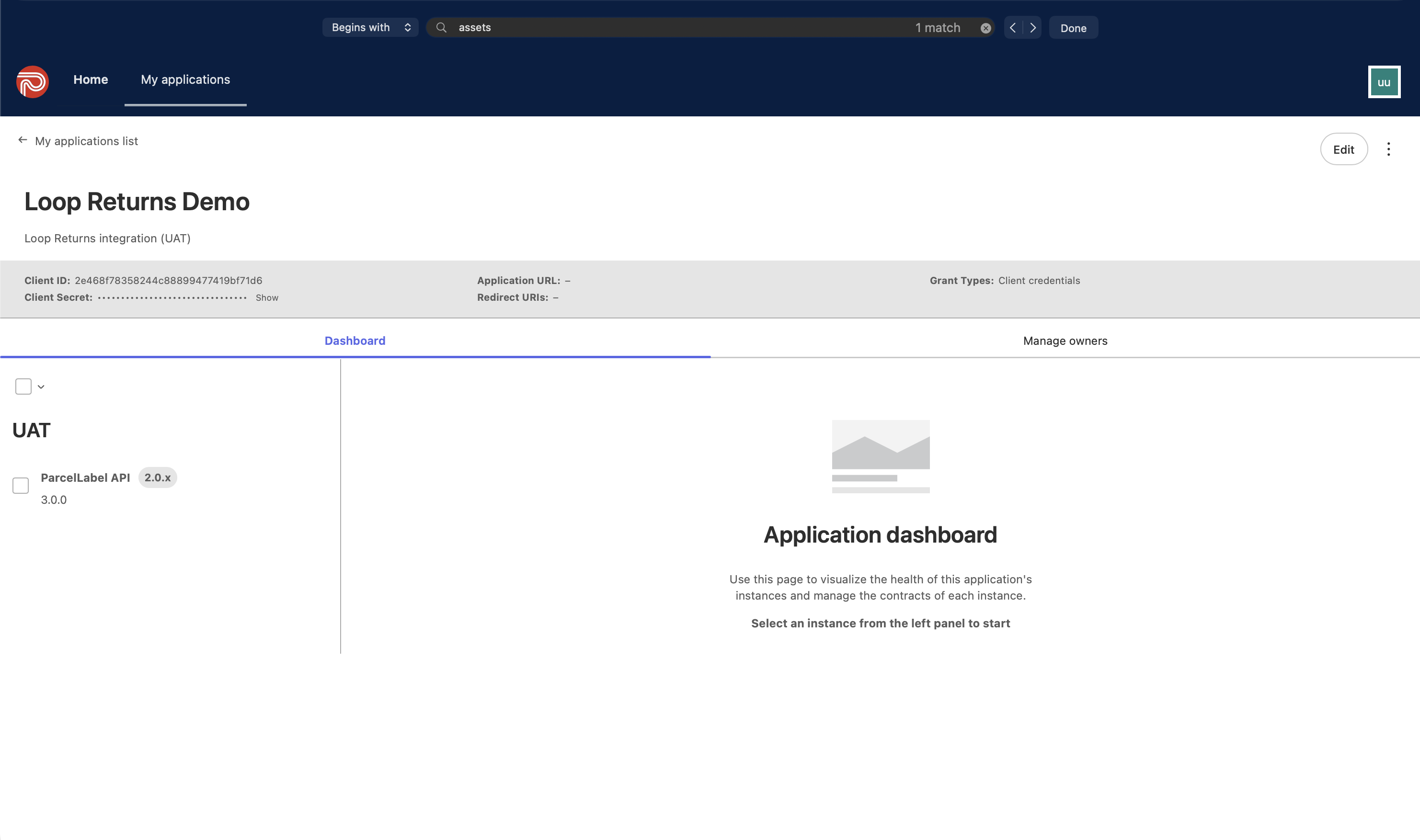
The client ID and client secret. Open your application in the MuleSoft Anypoint portal. The values are on the Credentials tab.
The account number. This is your 9-series or 5-series NZ Post billing account. It is at the top of your NZ Post invoice. It is also in the Account & billing section of the NZ Post Business Portal.
The site code. The site code tells NZ Post which location to collect from. If you have more than one site, ask your NZ Post account manager which site code to use for returns.
The service code. The service code tells NZ Post which product to use, for example
CPOLPfor CourierPost Overnight Parcel. Ask your NZ Post account manager which service codes your account can use.
What you need from Loop
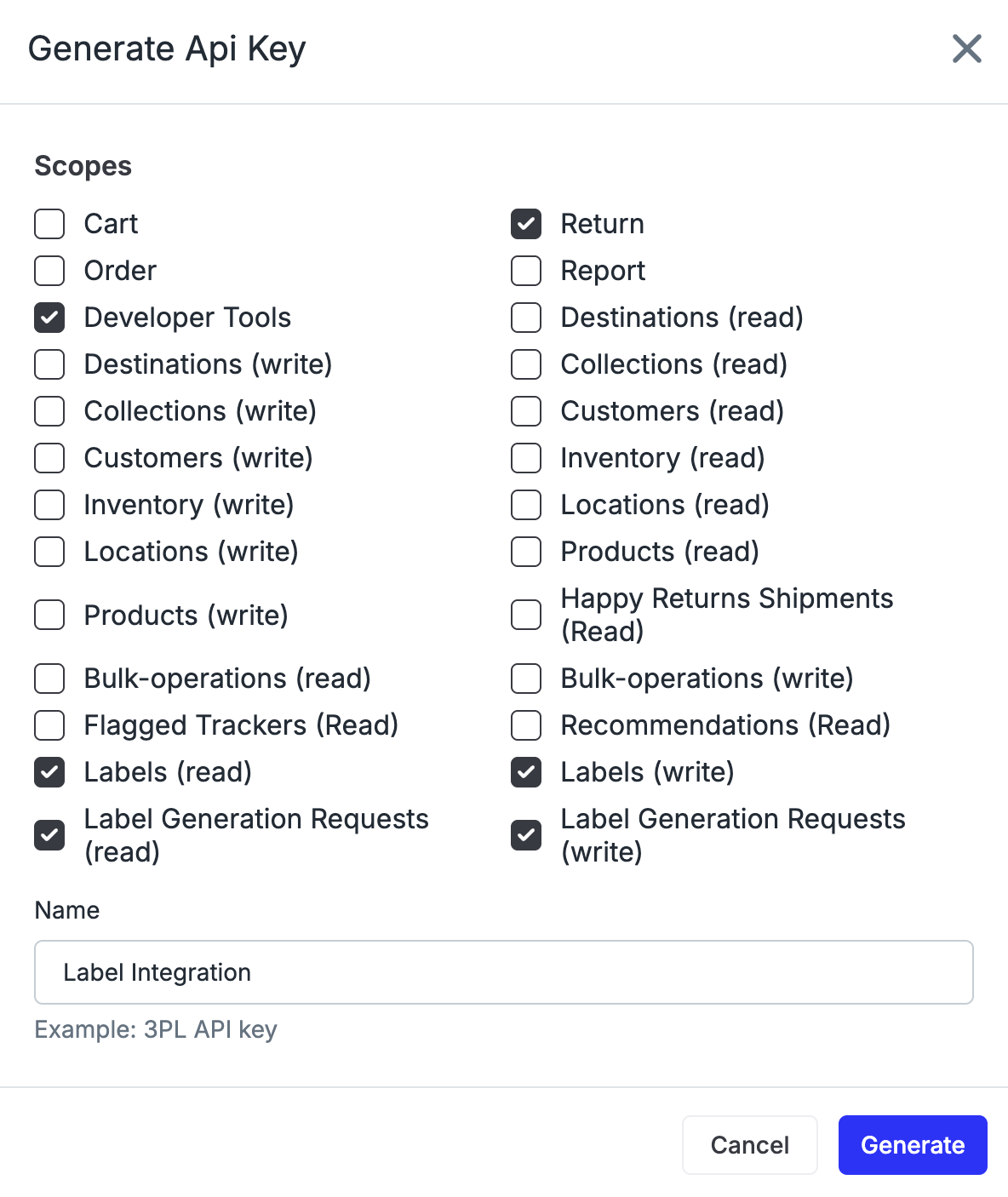
A Loop API key. To make the key, go to Returns management > Tools & integrations > Developer tools. The key needs these scopes: Labels (read), Labels (write), Label Generation Request (read), Label Generation Request (write), Return, and Developer tools.
Third-party label generation, enabled on each return policy that NZ Post makes labels for. For more information, see Third Party Labels via Label API.
Note: If you cannot see the label scopes, contact the Loop team. The Loop team enables the label scopes on your account.
Steps
Get the onboarding link for the NZ Post integration from the Loop team.
Open the Credentials tab. Enter your NZ Post client ID, client secret, account number, and site code.
Enter your Loop API key.
Open the Settings tab. Select your carrier, CourierPost or Pace. Enter your service code.
Set the default parcel dimensions and weight. Loop uses these values when a return has no parcel measurements. This step is optional, but it prevents label errors.
Save your settings.
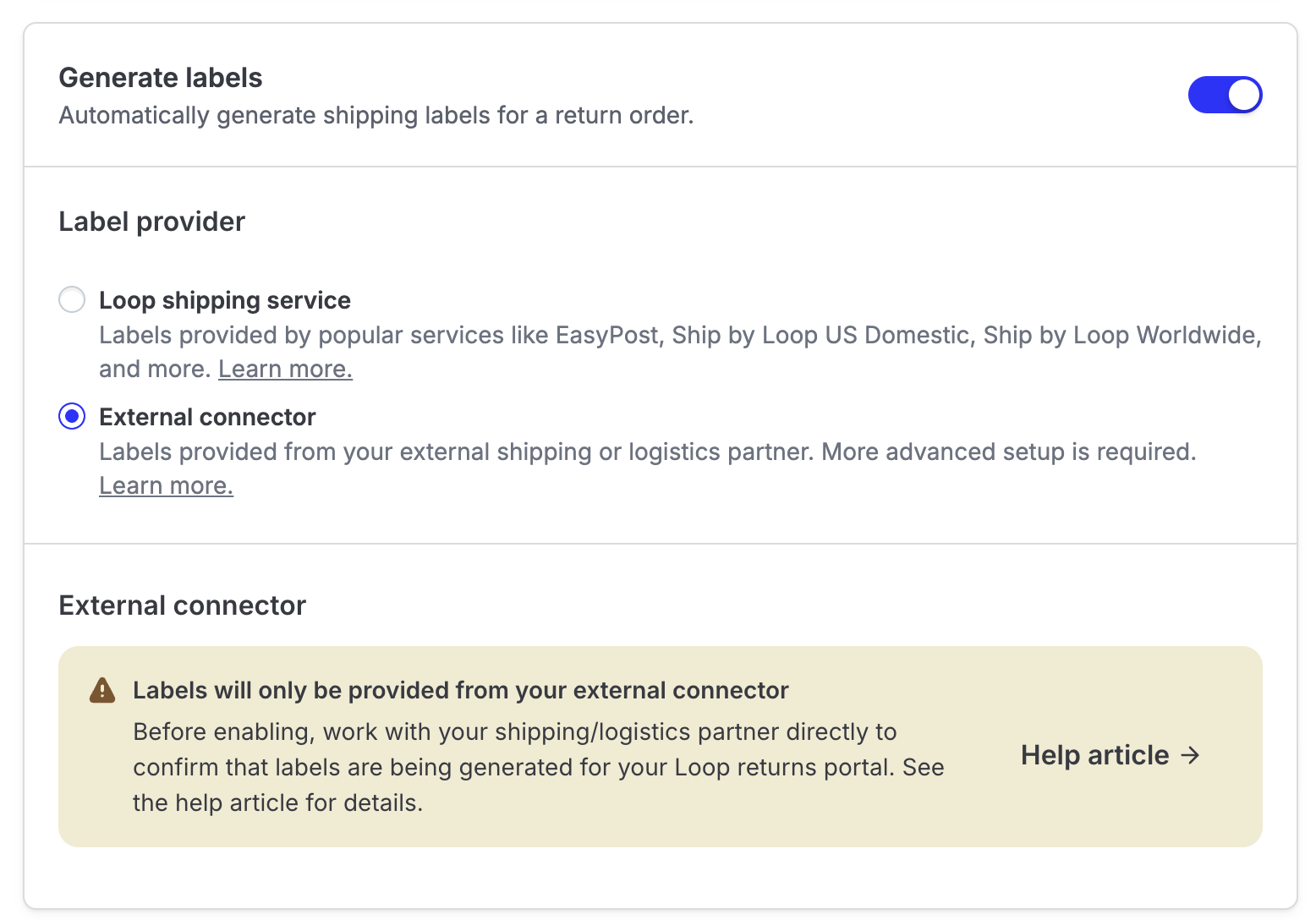
Add NZ Post as the label provider on each return policy. Go to Returns management > Policy settings > Return policies. Make sure Generate labels is on. Under Label provider, select External connector. For more information, see Carrier Accounts by Return Policy.
Test the integration with a live return. For more information, see Third-Party Label Testing.
Setup takes about 5 minutes after you get your NZ Post credentials. You do not need a developer.
Tracking updates
Loop reads the NZ Post ParcelTrack API every 30 minutes. Loop gets the latest events for each active return label. This is the default behavior. You do not need to configure it.
NZ Post can also send tracking events to Loop immediately with a webhook. Webhooks are faster than the 30-minute check. To use webhooks, contact the Loop team. The Loop team sets the webhook address for your integration. Your NZ Post account must also have permission to send webhook events. Ask your NZ Post account manager to confirm this.
Note: If a webhook fails, label generation is not affected. The 30-minute check gets the tracking events instead.
Loop maps each NZ Post scan event to a Loop tracking status:
NZ Post event | Loop status |
|---|---|
Information received (label created) | Label created |
Collected from sender | Pre-transit |
Arrived at facility | Pre-transit |
Departed facility | In transit |
Arrived at delivery depot | In transit |
Exception | In transit |
Out for delivery | Out for delivery |
Available for pickup | Out for delivery |
Delivery failed | Out for delivery |
Delivered | Delivered |
Cancelled | Label created |
If you need different values, contact the Loop team. The Loop team can change each status for your integration.
Admin and portal experience
You see the integration in two places:
Return timeline — each return record shows the NZ Post tracking updates.
Shopper returns portal — the shopper downloads and prints the NZ Post label.
If NZ Post cannot make a label, the shopper does not get a label, and the return record shows the error from NZ Post. For more information, see Troubleshooting Label Errors.
Plan information
To check if this feature is included in your plan, please review the Pricing page. To add this feature to your account, please contact your Merchant Success Manager.
FAQ
Does this integration support international returns?
No. This integration supports domestic New Zealand returns only. If the collection address is not in New Zealand, NZ Post does not make a label.
What is the difference between CourierPost and Pace?
CourierPost is the standard domestic courier brand of NZ Post. Pace is the express brand. Select the brand that matches your NZ Post agreement. Your service code must be for the same brand.
Why did my label fail?
There are three common causes. The service code is not enabled on your NZ Post account. The account number or the site code is missing. The collection address has no suburb. Open the return in Loop to see the error from NZ Post.
Do I need to give parcel dimensions?
Loop does not always have the parcel measurements for a return. Set default dimensions and weight during setup. If you do not set them, NZ Post rejects some label requests.
Which account number do I use if I have more than one?
Use the billing account that pays for the return shipments. If you are not sure, ask your NZ Post account manager which account is set up for returns.
How long does tracking take to show in Loop?
Tracking shows within 30 minutes. If the Loop team enables webhooks for your integration, tracking shows immediately.
How long does this integration take to set up?
Setup takes about 5 minutes after you get your NZ Post credentials.
Do I need a developer to complete the setup?
No. You enter your credentials and select your settings. You do not need a developer.
How do I test the label integration?
Create a live return with a New Zealand address. Then check that the label is in the returns portal. For more information, see Third-Party Label Testing.
Who supports this integration?
For setup or test problems, contact support@loopreturns.com. For questions about your NZ Post account, your service codes, or your API access, contact your NZ Post account manager.
Please reach out to support@loopreturns.com with any additional questions on this integration.